WeTransfer alternative: send files without uploading first
WeTransfer made sending a large file by link feel normal: pick files, upload them, share a link, and hope the recipient downloads before it expires. It works, and it works across the internet — but every file makes a round trip through someone else's server first. When both devices are in the same room, Lan-Share skips the detour: two browsers pair with an 8-digit code and the file moves directly from one device to the other.
Step by step
Open the page on the sending computer
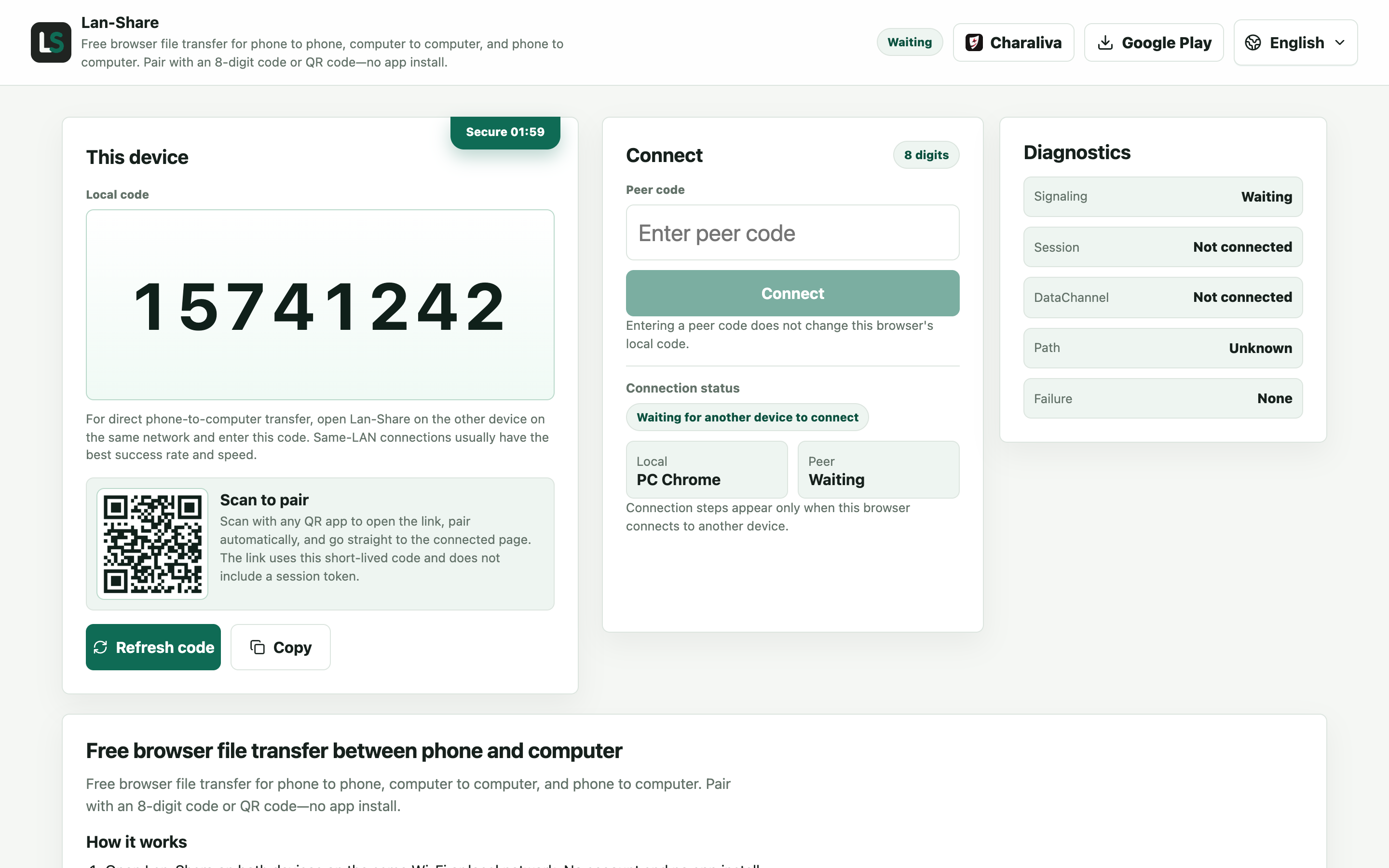
The file never leaves your machine on the way out. Under Local code the page shows an 8-digit code and a QR code for the recipient.
Join from the iPhone
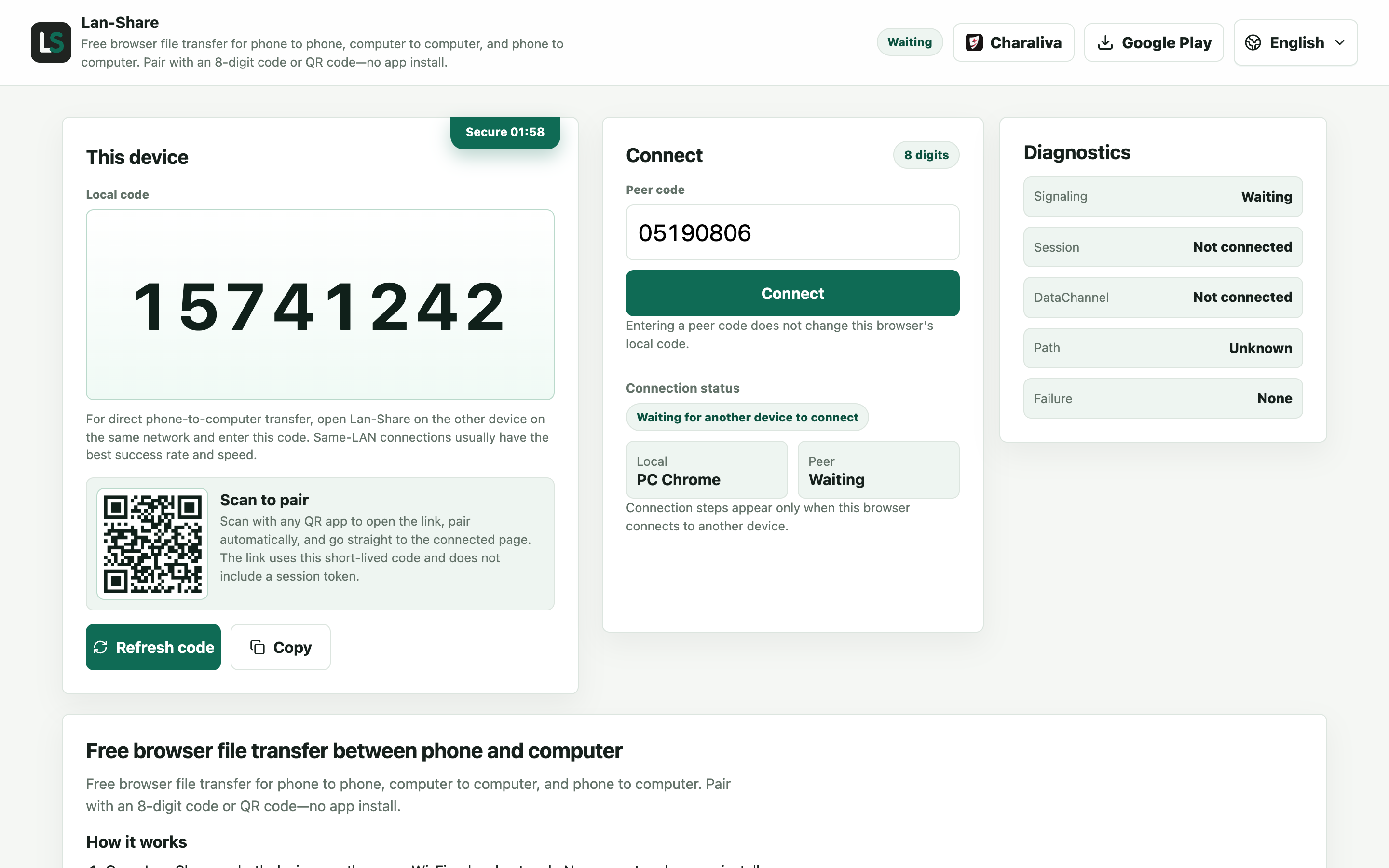
Open the same address in Safari and enter the code, or scan the QR code. Both pages switch to the conversation at once.
Send the files
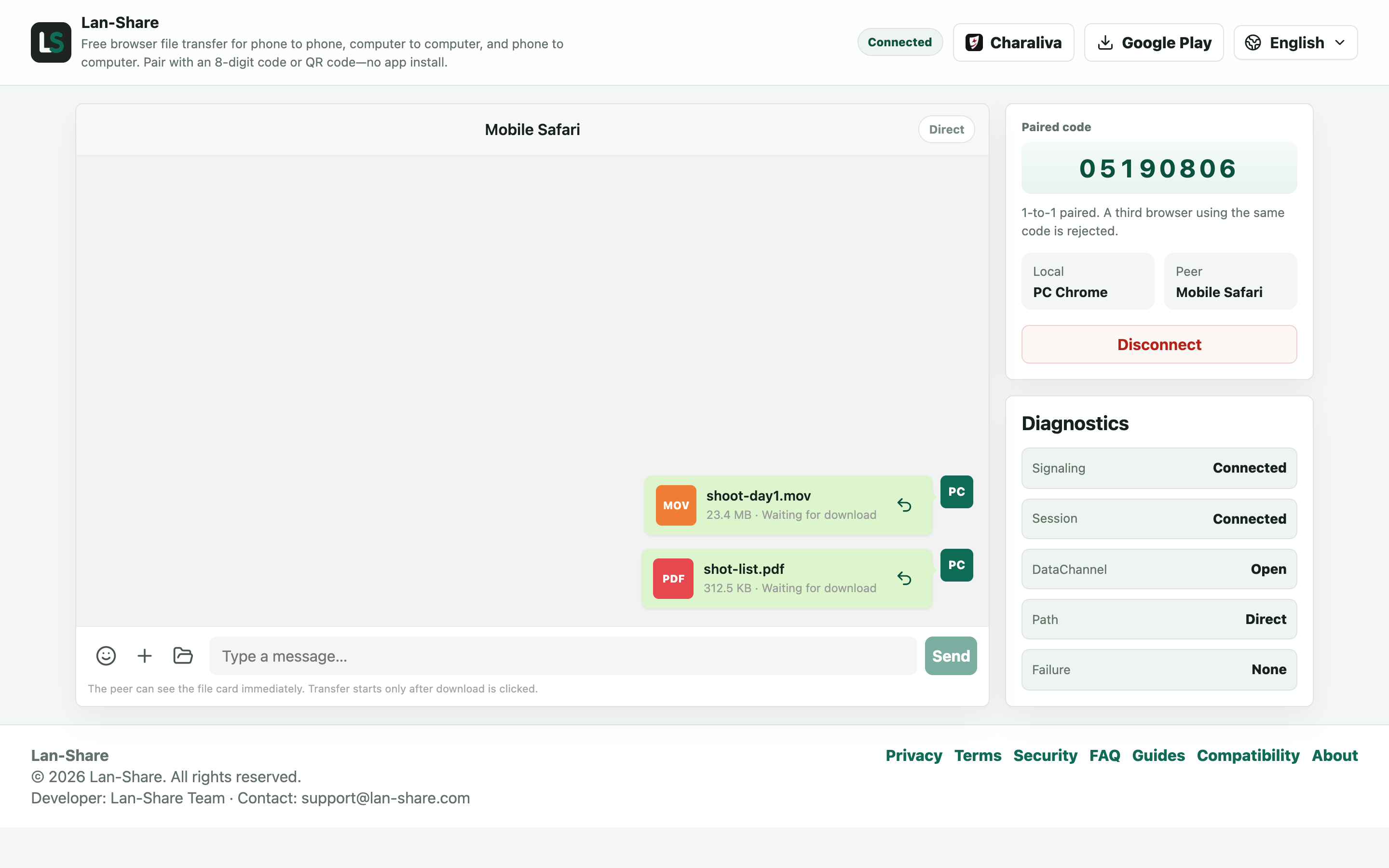
Drag them onto the conversation or use the paperclip. There is no upload step: the cards wait on the sender marked Waiting for download.
Download on the iPhone
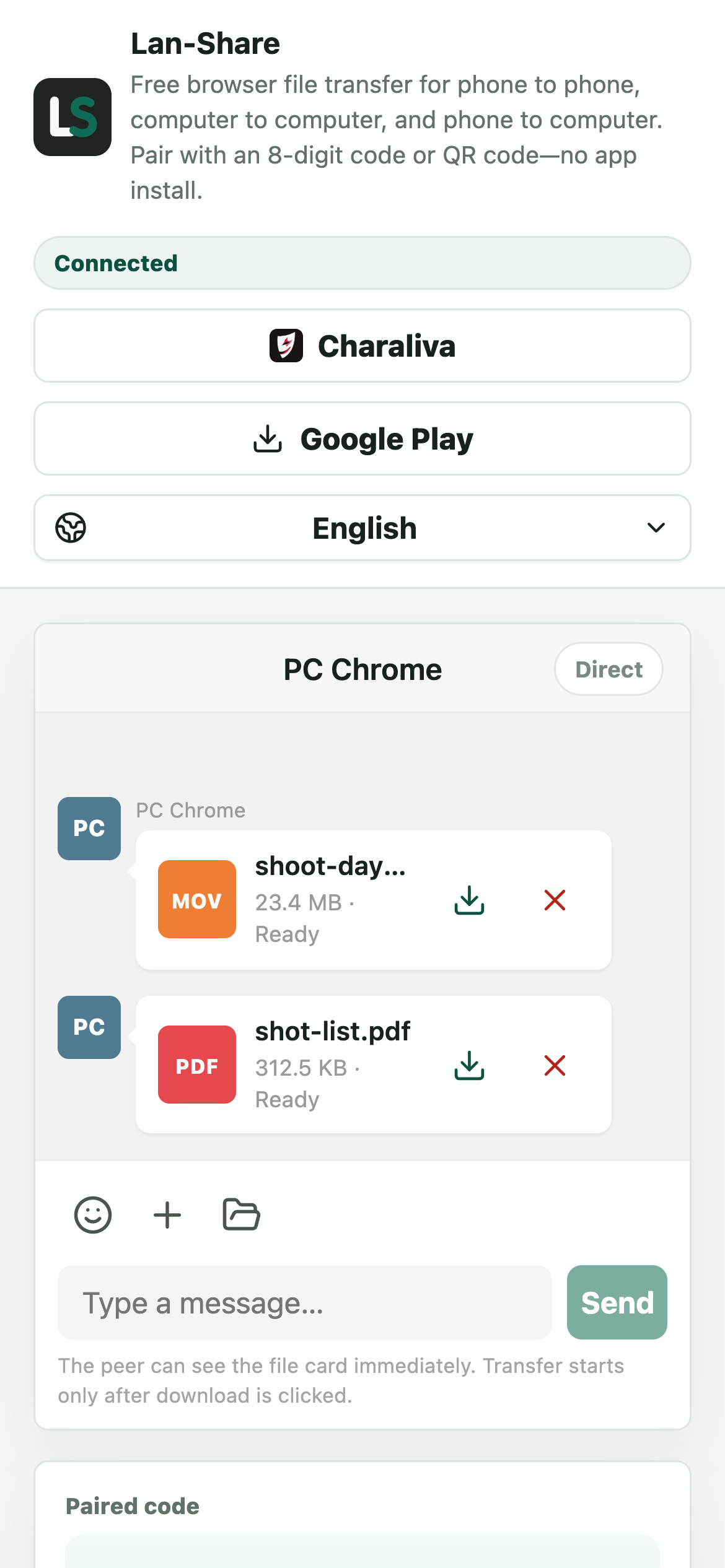
Tap the download icon on each card and iOS asks where to save, putting the file in the Files app with its original bytes.
How the two models differ
WeTransfer is a transfer service: the file leaves your device, sits on its servers for a while, and the recipient downloads it from a link. That is what makes it work across the internet, and also what makes it slower than it needs to be when the recipient is sitting next to you. Lan-Share is direct-only: the server serves the page, pairs the two browsers, and stays out of the way, while the file content travels browser to browser over your own local network.
When WeTransfer is still the better choice
If the recipient is in another city, on another network, or you need the file to wait on a link after your laptop is closed, a cloud transfer service is the right tool. Each Lan-Share session also has a per-file limit, shown on the page (about 200 MB by default), so split larger files or send them one at a time. For same-room transfers, direct is faster, and nothing is left behind.
Troubleshooting
- The recipient cannot open the page
Why it happens This route only works when both devices are on one network; a remote recipient needs a server-based service instead.
How to fix it For someone in another city, use a cloud transfer service; for the same room, pair here.
- The transfer stops when the screen locks
Why it happens Both iOS and Android suspend a backgrounded browser tab.
How to fix it Keep both pages in the foreground until the last file reads Downloaded.
- A large file is refused
Why it happens The per-file limit is shown on the page, about 200 MB by default.
How to fix it Send it on its own, or split it first.
- The upload icon never appears
Why it happens Nothing is uploaded here — the file goes straight to the other browser, so there is no progress bar to wait on.
How to fix it Watch the file card instead: it turns Ready on the receiving side.
FAQ
What is a good WeTransfer alternative?
For same-network sends, Lan-Share: no upload wait, no expiring link, nothing stored. WeTransfer stays the pick when the recipient is remote.
Is Lan-Share free to use?
Yes. Browser-to-browser transfers are free and need no account — open the page on both devices, pair, and send.
Are files stored on a server?
No. Lan-Share is direct-only: file content moves between the paired browsers over the local network, and the server only handles the page, pairing, and signaling.
Is there a file size limit?
Each session has a per-file limit, shown on the page (about 200 MB by default). Split larger files or send them one at a time.
Can I send files to someone on another network?
Not with Lan-Share. It is deliberately local and direct-only, with no relay. Use a cloud transfer service when the devices are far apart.