Transfer files from iPhone to Mac without AirDrop
Between an iPhone and a Mac, Apple's built-in tools are genuinely good: AirDrop for a quick send, Finder for a wired one. So why look for another way? Because AirDrop quietly fails in everyday situations — an older Mac, a Wi-Fi or Bluetooth hiccup, a Mac that never appears in the share sheet, or a folder too large to babysit. Lan-Share covers those cases from the browser: open lan-share.com on both devices, pair with an 8-digit code or QR code, and the files travel directly over Wi-Fi.
Step by step
Open lan-share.com on the Mac
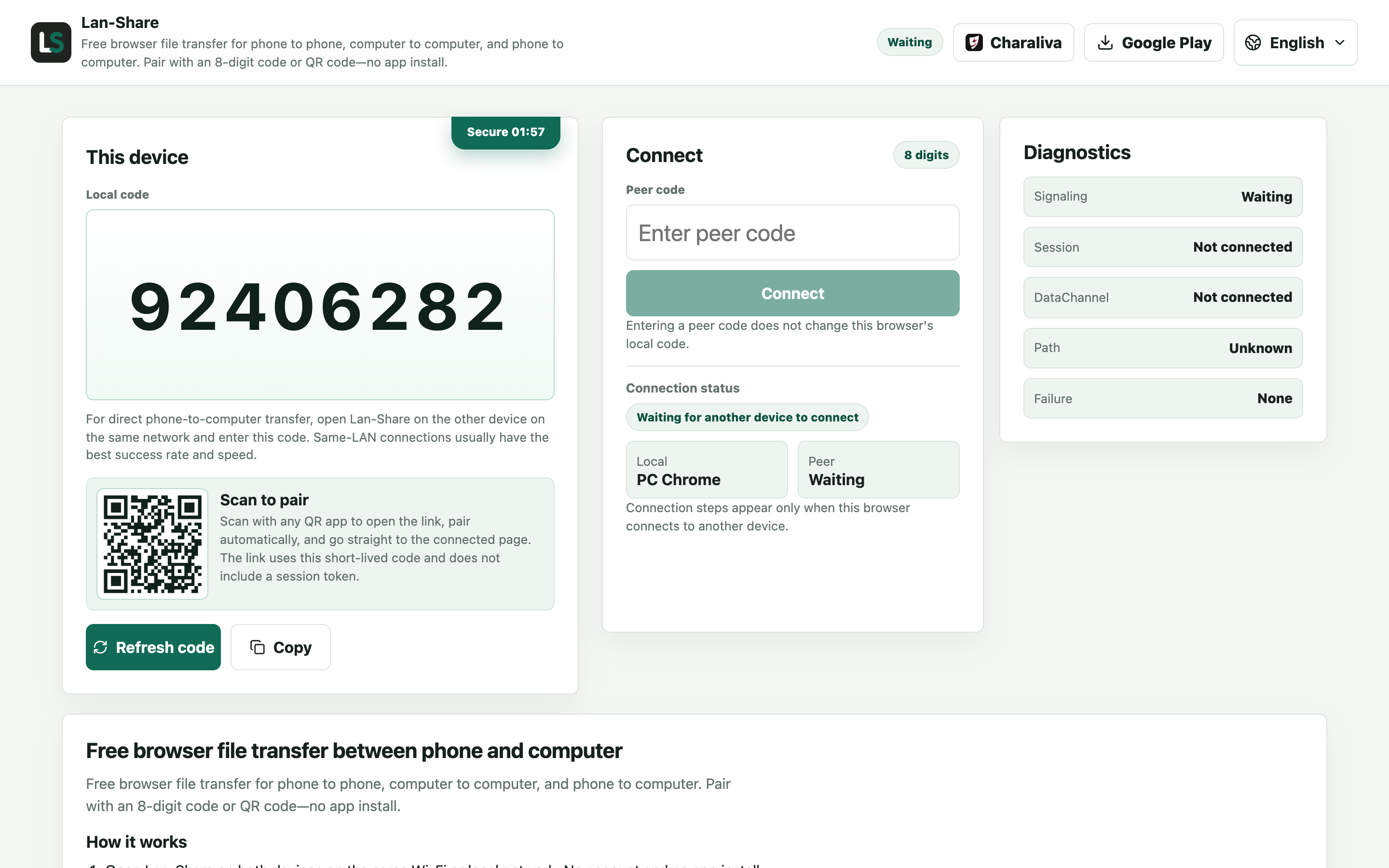
Safari or Chrome, either is fine. Under Local code the page shows an 8-digit code with the matching QR code underneath. Leave this page open — it is the device the iPhone will join.
Join from the iPhone
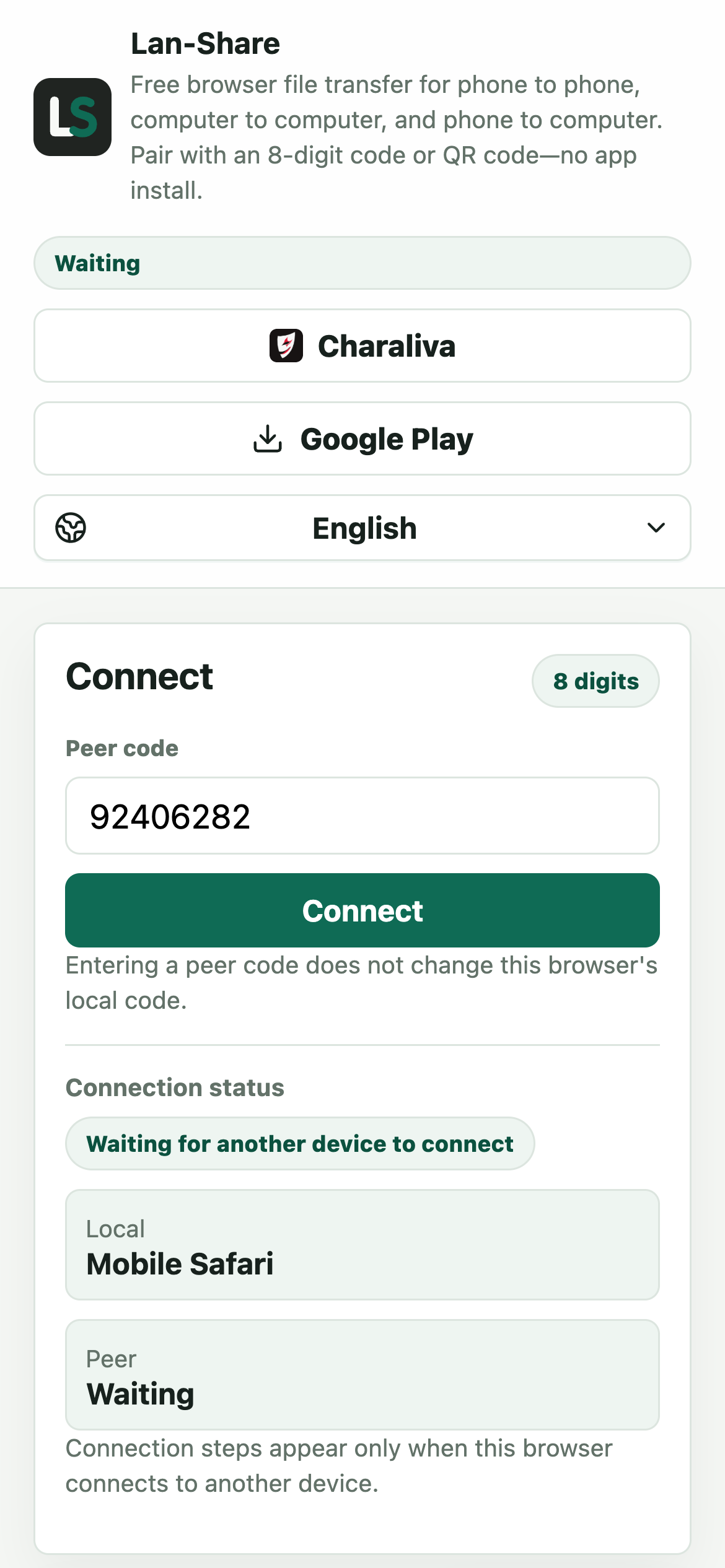
In Safari on the iPhone, open the same address and type the 8 digits into Peer code, or scan the QR code from the Mac's screen. Tap Connect and both pages switch to the conversation.
Send the photos or files
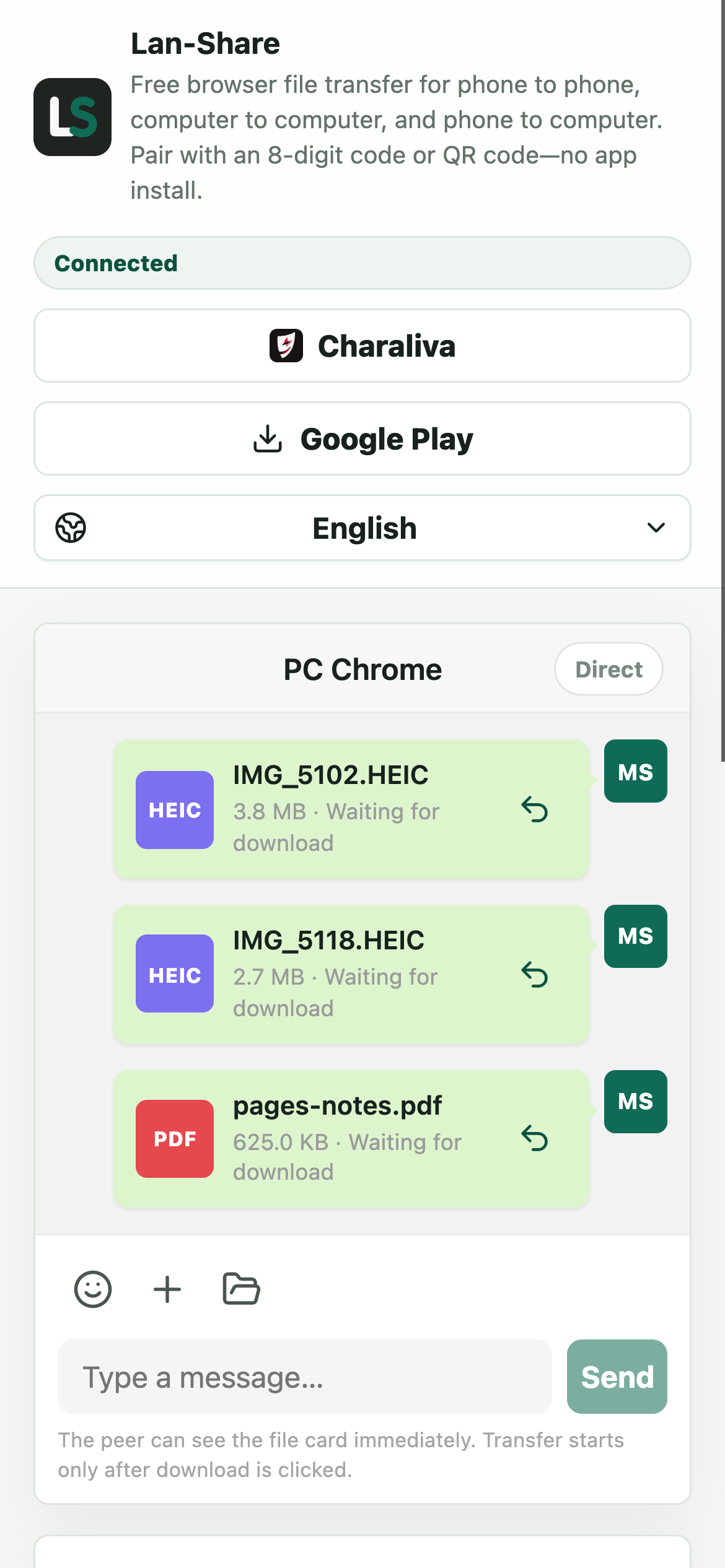
Tap the paperclip and iOS opens its own picker: Photo Library for photos and videos, or Browse for documents. Each item becomes a card in the conversation, still marked Waiting for download because nothing has moved yet.
Download on the Mac
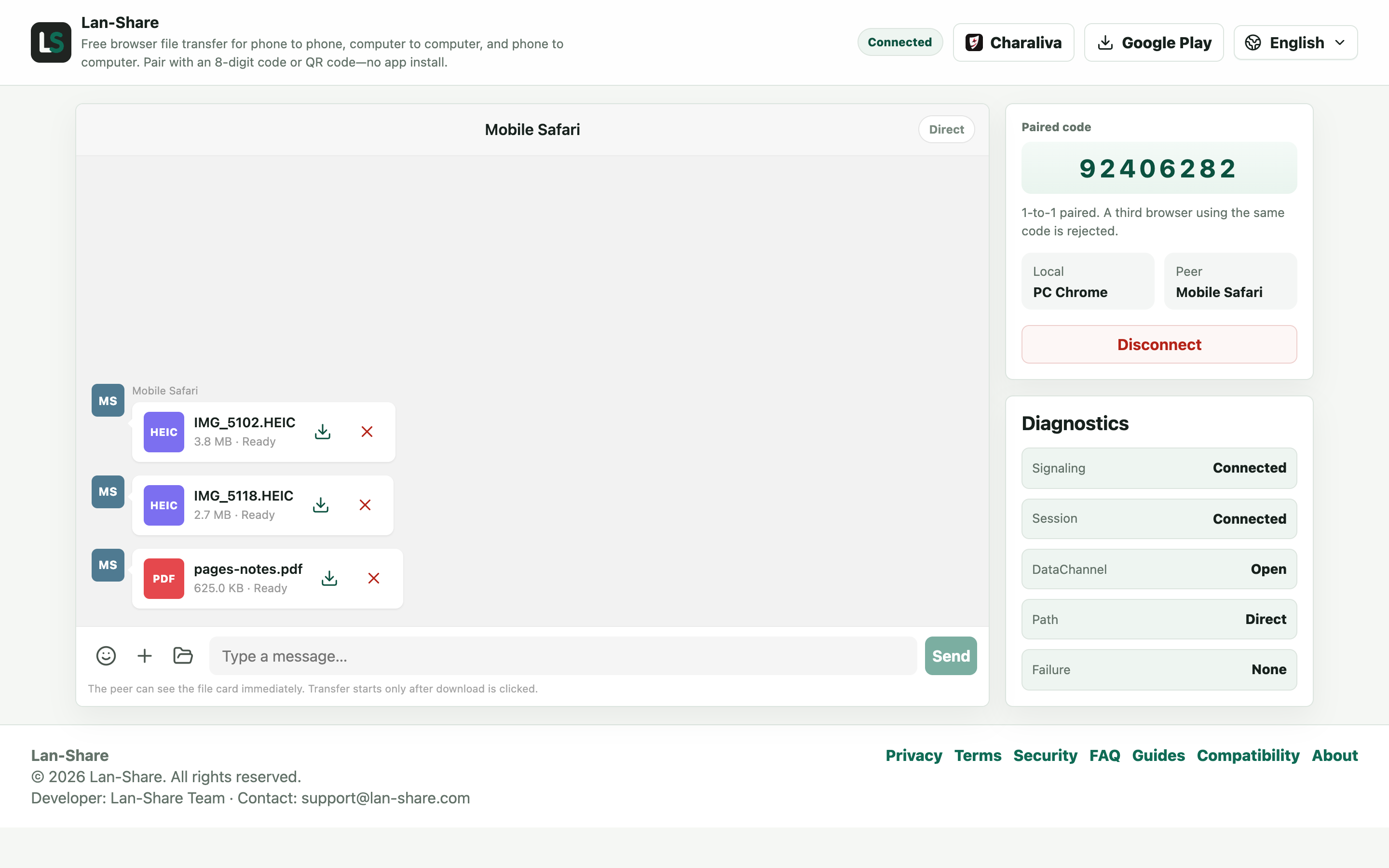
The Mac's conversation shows the same cards marked Ready. Click the download icon on a card and macOS saves it into Downloads under its original name — HEIC stays HEIC, nothing is re-encoded.
Where AirDrop and Finder fall short
AirDrop depends on both devices' radios being awake and discoverable, which fails on older Macs, in crowded 2.4 GHz networks, and whenever personal hotspot or VPN settings get in the way. A Finder import needs the right cable. iCloud Photos syncs an entire library before Windows or storage worries even start. The browser route sidesteps all three: any two devices with a current browser on the same network can pair, whatever their age or Apple ID.
When the built-in tools are still the better choice
For one photo between two of your own Apple devices a meter apart, AirDrop beats everything — it is built in and needs no page. Lan-Share earns its place when AirDrop is unavailable or unreliable, when you want the receiver to confirm a batch of files before anything moves, or when the Mac is not signed into your Apple ID.
Troubleshooting
- The Mac never appears in AirDrop
Why it happens AirDrop needs both radios awake and discoverable, and it refuses to run on some older Macs or behind a VPN.
How to fix it Use the code flow instead: both devices only need a browser and the same network, so the AirDrop radios never enter the picture.
- Safari on the iPhone stops when the screen locks
Why it happens iOS suspends a backgrounded or locked Safari tab, which pauses the file stream.
How to fix it Keep Safari in the foreground and raise Auto-Lock in Settings until the last file reads Downloaded.
- A HEIC photo will not open in an app on the Mac
Why it happens Lan-Share transfers the stored file byte for byte and never converts it.
How to fix it macOS Preview and Photos open HEIC natively; for other apps, convert a copy afterwards — the original stays untouched.
- The two devices never pair even though both have Wi-Fi
Why it happens Guest networks and some routers isolate clients, so the devices cannot see each other.
How to fix it Join the same main network on both, or turn on the iPhone's hotspot and connect the Mac to it.
FAQ
How do I transfer files from iPhone to Mac without AirDrop?
Open lan-share.com on the Mac and on the iPhone, pair with the 8-digit code or QR code, select the files on the iPhone, and download them on the Mac. AirDrop, iCloud, and cables are all optional.
Why is my Mac not showing up in AirDrop?
AirDrop discovery depends on Wi-Fi and Bluetooth being on and the Mac being awake and not in sleep mode; older hardware and congested networks also break it. A code-based pairing does not rely on device discovery at all, so it keeps working when discovery fails.
Does it need the same Apple ID or iCloud?
No. There is no account of any kind, and nothing is uploaded to iCloud. Files move directly between the two browsers on your network.
Does it work from Mac back to iPhone?
Yes, pairing works in both directions. On the iPhone, taps arrive as downloads into the Files app, where you can move them wherever you like.
Do photos and videos keep their quality?
Yes. Files transfer as originals — no compression, no HEIC-to-JPG conversion, no video re-encoding — so what lands on the Mac matches what was on the iPhone.