Transfer files from Android to PC over Wi-Fi
Android to Windows is the classic cable-and-driver problem. Lan-Share replaces the cable with your Wi-Fi network: open the same web page on the phone and the PC, pair with an 8-digit code or QR code, and the file goes straight from one browser to the other.
Step by step
Open lan-share.com on the PC
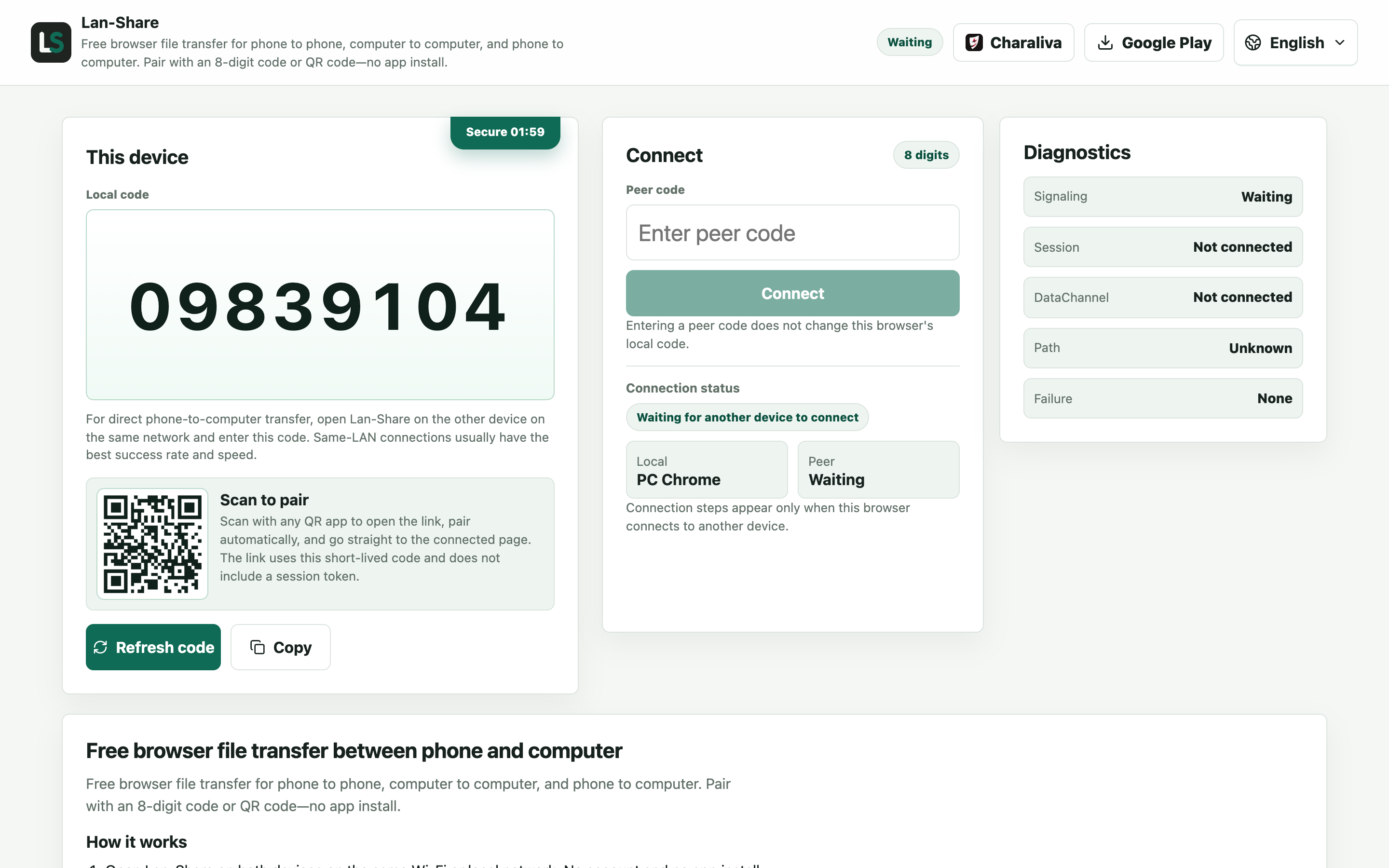
Edge, Chrome, or Firefox all work. Under Local code the page shows an 8-digit code, with a QR code underneath that encodes the same number. The countdown beside it is how long the code stays valid.
Join from the Android phone
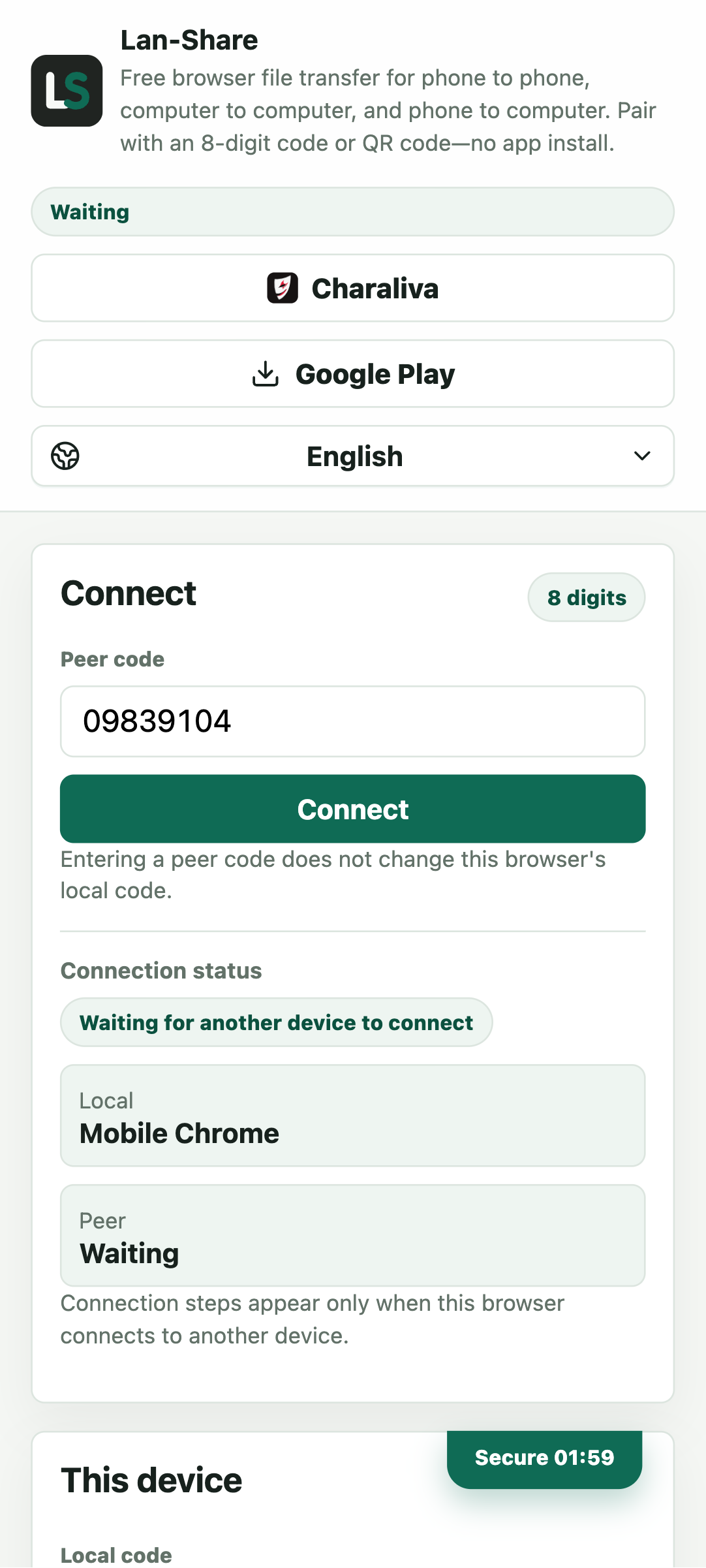
Open the same address in Chrome and type the 8-digit code into Peer code, or scan the QR code straight from the PC screen. Tap Connect; both pages switch to the paired view once the two browsers find each other.
Pick the files on the phone
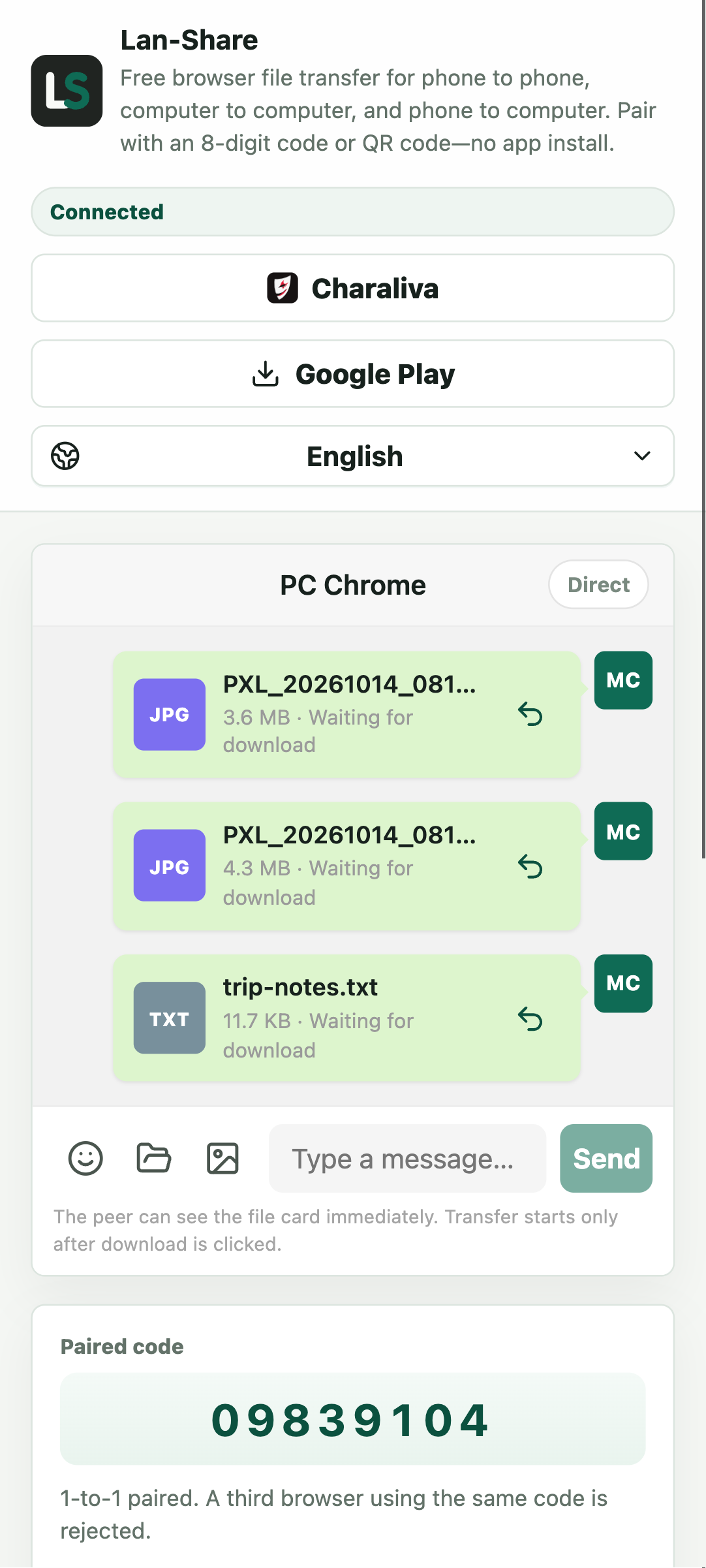
Choose what to send from the phone's own picker. You can pick several items in one pass; each becomes a card in the conversation with its name and size, still marked Waiting for download because nothing has moved yet.
Download them on the PC
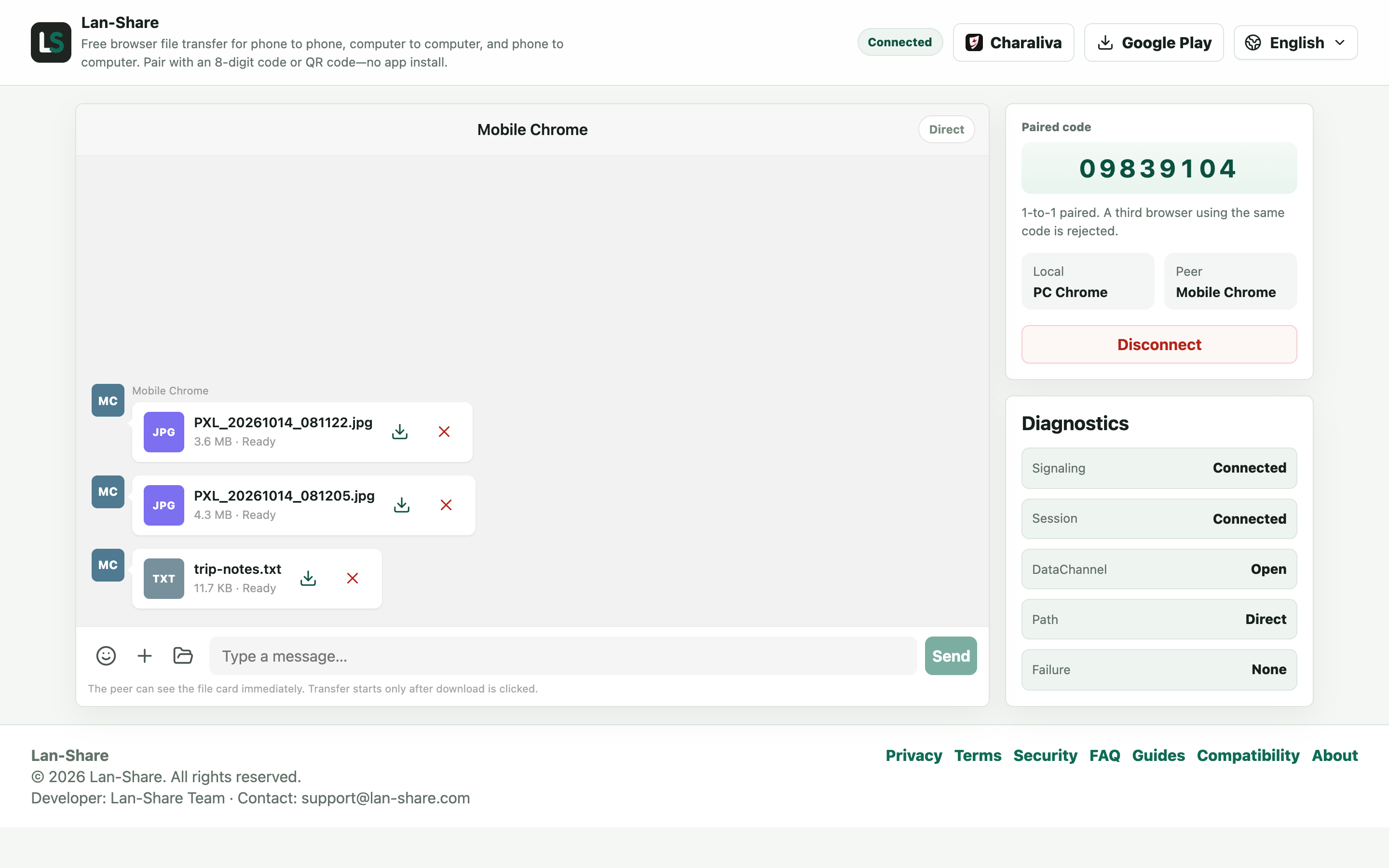
The same cards arrive in the PC's conversation, each marked Ready. Bytes only move after you approve: click the download icon on a card. Windows saves them to the Downloads folder unchanged.
No cable, no transfer app
USB file transfer, Google's Quick Share for Windows, and cloud drives all work, with strings attached: a data-capable cable, a companion app, or an upload that takes minutes on slow connections. A browser-based transfer removes all three: nothing to install on either device, and no cloud round trip.
Large files and multitasking
Android may throttle a backgrounded browser. Keep the page visible while files transfer, disable battery optimization for the browser if a big transfer stalls, and stay on the same Wi-Fi network as the PC. Multiple files can be queued in one transfer and downloaded together.
Troubleshooting
- Both devices show a Wi-Fi connection but never pair
Why it happens Guest networks, hotel and public hotspots, and some routers keep clients isolated, so the two devices cannot see each other even on the same network name.
How to fix it Rejoin the main network on both, or turn on the phone's personal hotspot and connect the PC to it so both sit on one range.
- The PC page reports that the session has ended
Why it happens Sessions are short-lived and strictly one-to-one: closing either page, or letting the code expire, ends the pairing.
How to fix it Open lan-share.com on both devices again and pair with a freshly generated code.
- The transfer stalls when the phone screen turns off
Why it happens Android slows or suspends a backgrounded Chrome tab, which pauses the file stream.
How to fix it Keep Chrome in the foreground with the screen awake, and allow Chrome to run without battery optimization before sending something large.
- A very large file is refused
Why it happens Each session enforces a per-file limit that the page displays, about 200 MB by default.
How to fix it Check the limit shown on the page, and send oversized videos on their own in a fresh pairing.
FAQ
How do I transfer files from Android to Windows without a USB cable?
Connect both devices to the same Wi-Fi, open lan-share.com on both, enter the 8-digit code from the PC on the phone (or scan the QR code), pick files on the phone, and download them on the PC.
Do I need to install an app on the phone?
No. Lan-Share runs in Chrome, Samsung Internet, and other modern Android browsers. Nothing is installed and no account is needed.
Can I send several files at once?
Yes. Select multiple photos, videos, or documents in one go. The receiver can download them individually or all at once.
Why did the transfer pause when I switched apps?
Android can pause a backgrounded browser tab. Keep the Lan-Share page in the foreground and the screen on, and disable battery optimization for the browser during large transfers.
Does Android to Mac work too?
Yes. The same flow works between Android and macOS, Linux, or another Android phone, for any two devices that can open a browser on the same network.