Transfer files from Android to Mac wirelessly
macOS has never had a first-party way to receive files from an Android phone. Google's Quick Share targets Windows PCs, the old Android File Transfer app is USB-only and effectively abandoned, and cloud drives cost you an upload, a wait, and a download. Lan-Share takes the local route instead: both devices open a browser, an 8-digit code pairs them, and files travel directly over the network they already share.
Step by step
Get both devices onto one network
A direct transfer runs inside one local network. Join the Mac and the Android phone to the same Wi-Fi. No shared network at hand? Turn on the phone's personal hotspot and join it from the Mac; that private network works the same way.
Open lan-share.com on the Mac
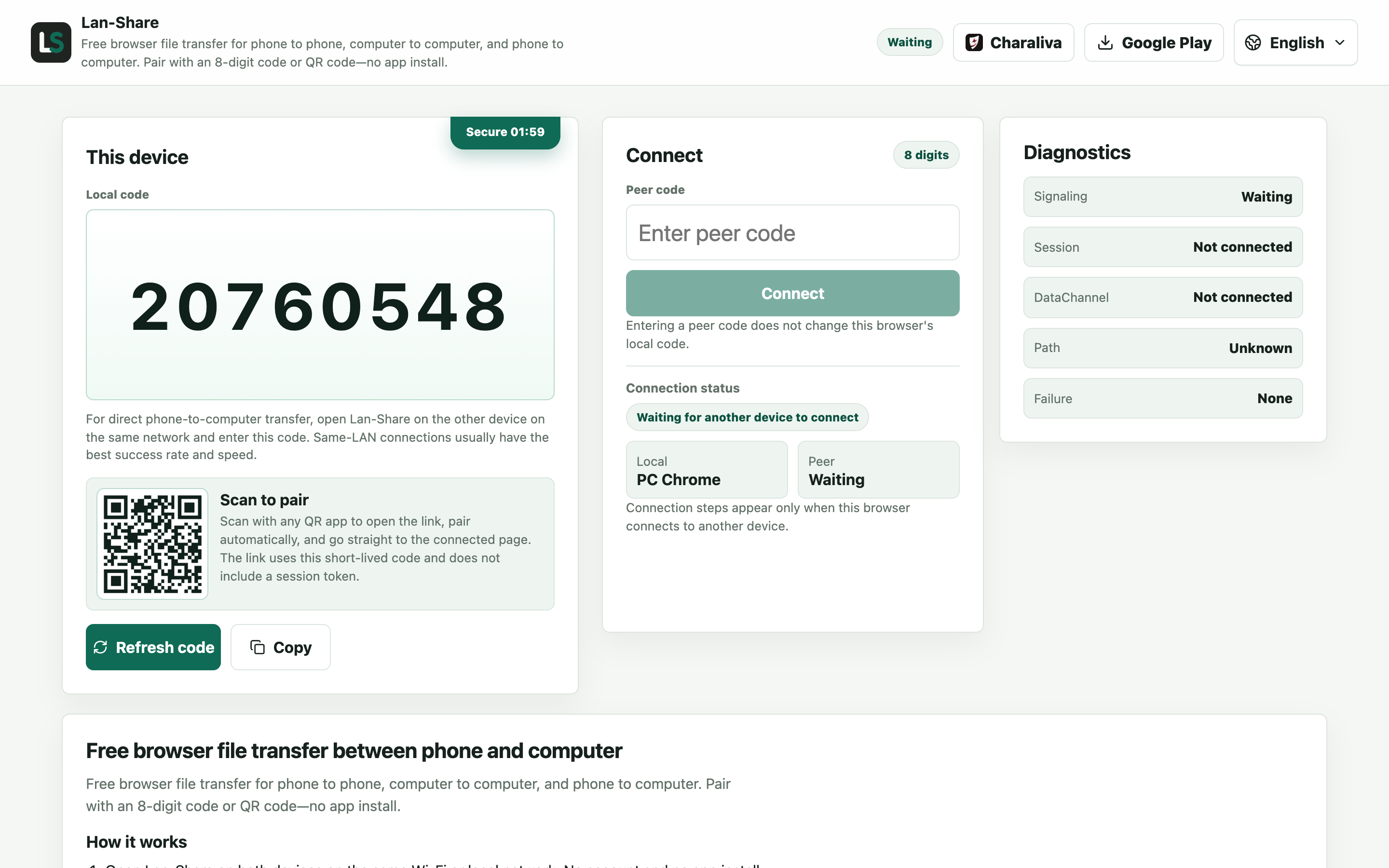
Safari or Chrome, either is fine. Under Local code the page shows an 8-digit code, with the matching QR code underneath it.
Join from the Android phone
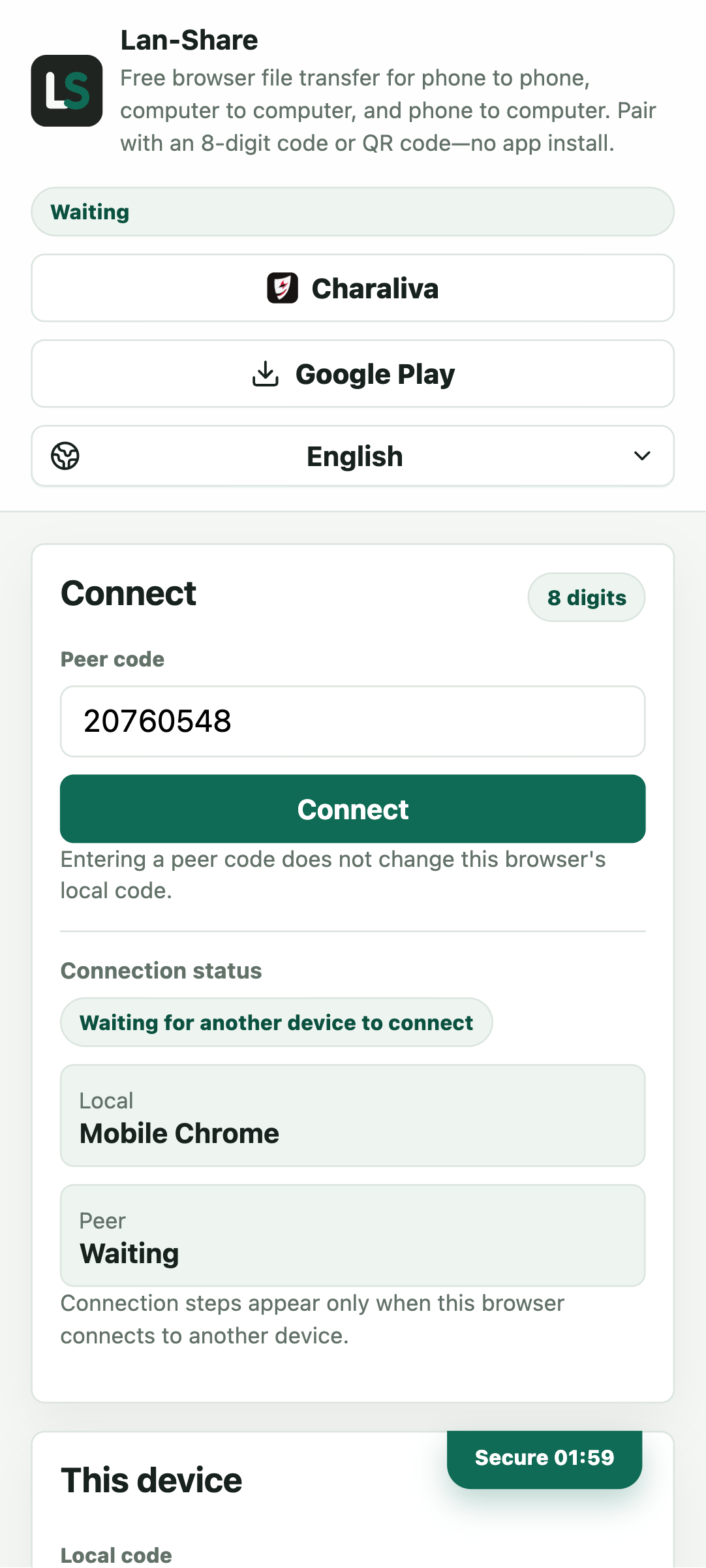
In Chrome on the phone, open the same address and type the code into Peer code, or scan the QR code from the Mac screen. Tap Connect and both pages switch to the paired view.
Pick the files on the phone
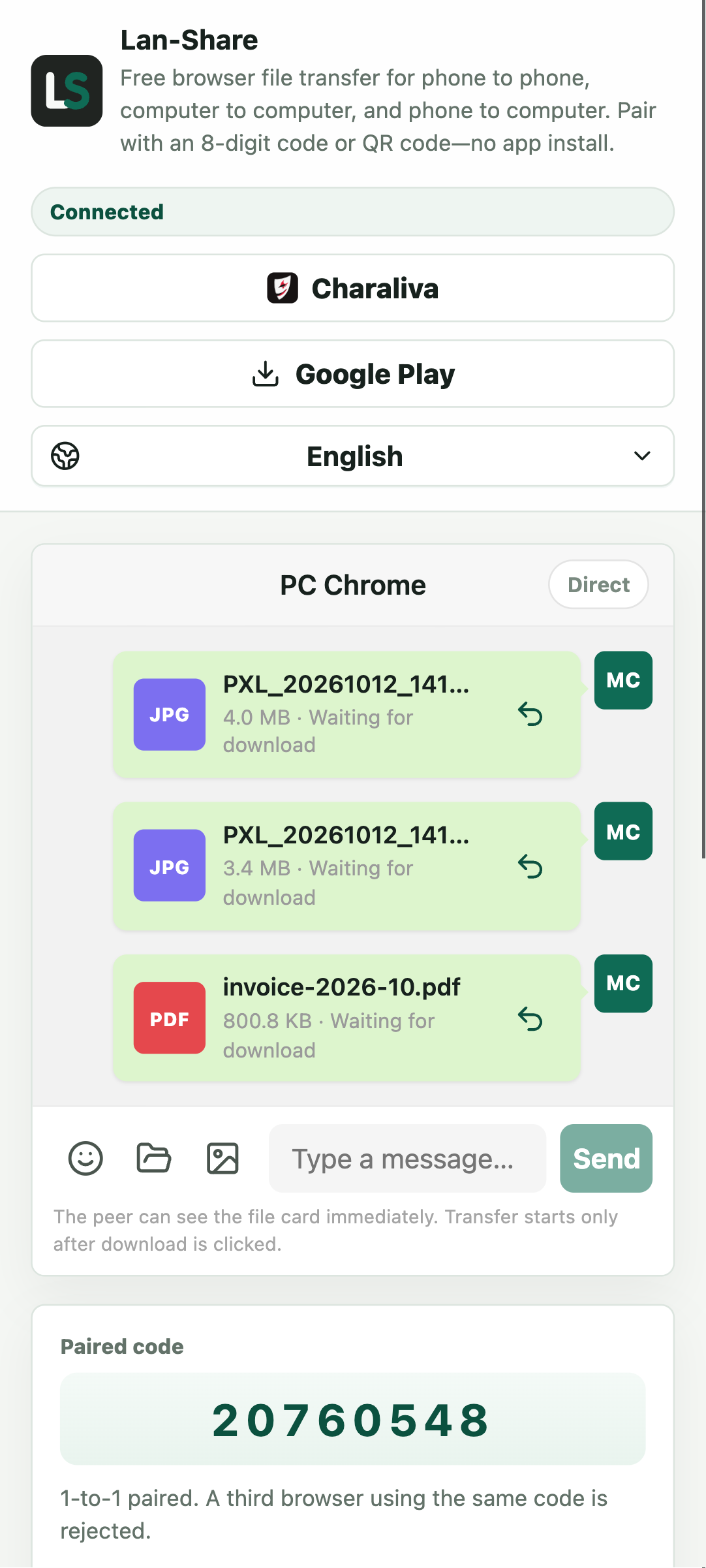
Android Chrome separates Gallery for photos and videos from Files for documents. Select everything you want in one pass; each item becomes a card in the conversation with its name and size.
Download on the Mac
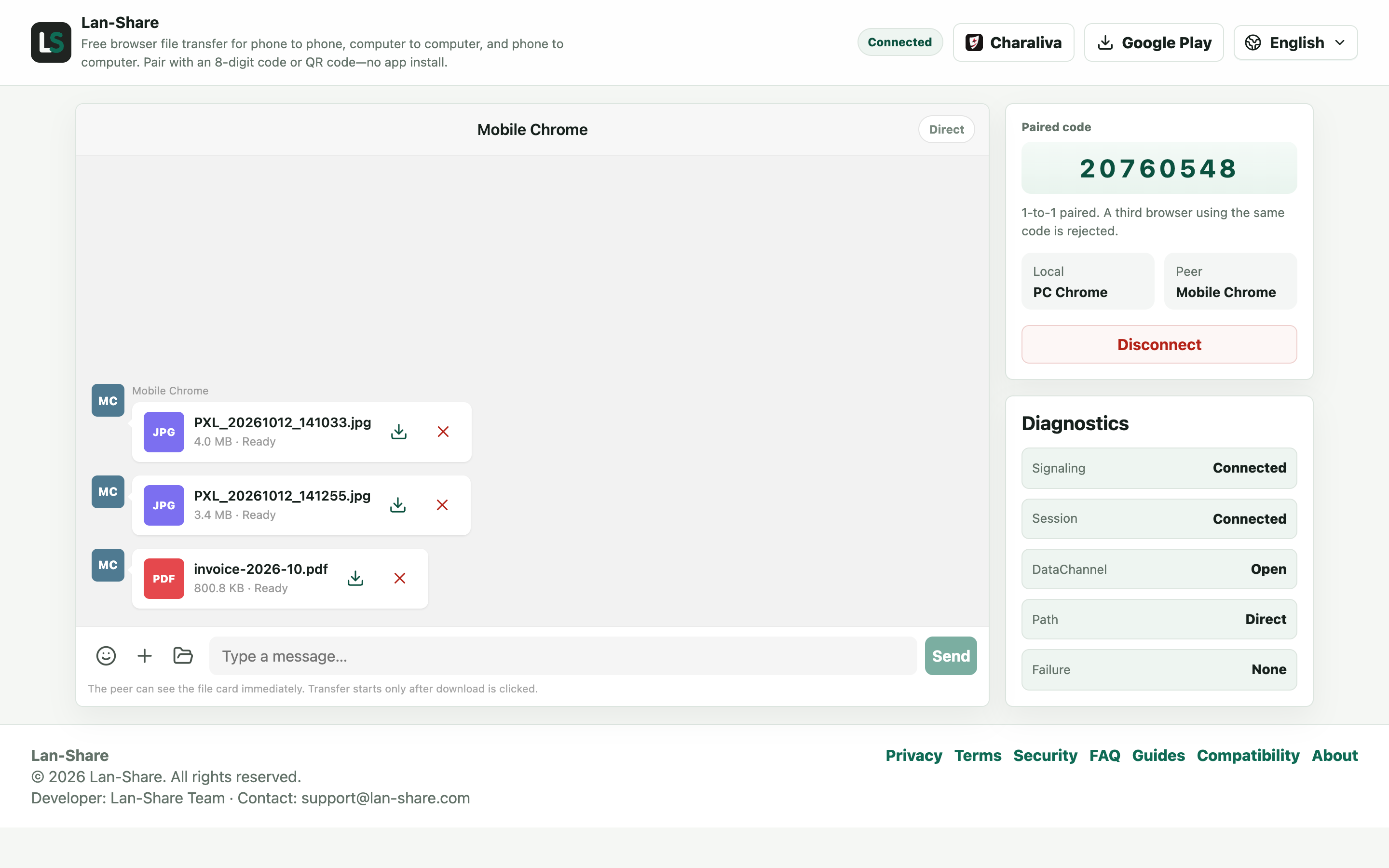
The same cards reach the Mac's conversation, marked Ready. Nothing has moved yet: click the download icon on a card. macOS saves them into Downloads under their original names.
Why the usual Android-to-Mac paths disappoint
Cloud drives mean every photo waits for an upload before the Mac can see it, with storage caps and subscription math attached. USB plus Android File Transfer needs a cable and a dated single-window app that breaks on newer Android versions. Bluetooth is slow enough to make videos a chore. A browser pairing sidesteps all of it — same Wi-Fi on both devices, and the files start moving.
Keep in mind
The receiver confirms every download before any bytes move, so nothing arrives unasked. Keep both screens awake while a transfer runs — Android can throttle background tabs too. Each session has a per-file limit, shown on the page (about 200 MB by default), so send large videos one at a time. Files arrive as originals: photos are not compressed and videos are not re-encoded.
Troubleshooting
- Both devices show as connected to Wi-Fi, yet they never pair
Why it happens Guest networks, public hotspots, and some routers keep clients isolated, so the two devices cannot see each other even on the same SSID.
How to fix it Rejoin the same main network on both, or turn on the phone's personal hotspot and connect the Mac to it so both sit on one address range.
- A large video stalls partway through
Why it happens Android battery optimisation slows Chrome down once the screen turns off or the tab goes to the background.
How to fix it Keep Chrome in the foreground with the screen awake, and turn off battery optimisation for Chrome before starting a long transfer.
- The transfer rejects one particular video
Why it happens Each session enforces a per-file limit that the page displays, about 200 MB by default.
How to fix it Send that video on its own in a fresh pairing, and check the limit shown on the page before you start.
- Downloaded files open in the wrong macOS app
Why it happens The browser stores each file exactly as it arrived and does not inspect or rename it.
How to fix it Open it once with the right app, or fix the association in Finder's Get Info panel; the file itself is intact.
FAQ
Is there an AirDrop equivalent for Android and Mac?
Not built into either system. Google's Quick Share covers Windows PCs, and Apple's AirDrop stays inside the Apple ecosystem. Lan-Share provides the cross-platform equivalent in the browser — open a page on both devices and pair with a code.
Do I need Android File Transfer or a USB cable?
No. The transfer runs over Wi-Fi (or the phone's hotspot) between two browsers, so there is no cable and no desktop app to install.
Does it work from Mac to Android too?
Yes. Pairing works in both directions, so pushing files from the Mac to the phone uses the same code and QR flow.
Do the phones keep original quality?
Yes. Photos and videos are transferred as files, with no compression and no re-encoding, so what lands on the Mac is exactly what was on the phone.
What if the devices are not on the same Wi-Fi?
A direct transfer needs both devices on the same local network. If there is no shared Wi-Fi, enable the phone's personal hotspot and connect the Mac to it — the transfer then runs on that private network.