Transfer photos from iPhone to PC in full quality
The camera roll is where the Apple-Windows wall bites hardest: getting photos onto a PC usually means a USB cable with the Apple Devices app, or an iCloud sync that uploads your whole library before Windows sees a single picture. Lan-Share is a fourth route that stays in the browser: pair the iPhone and the PC with an 8-digit code, pick the photos, and the originals travel straight over Wi-Fi.
Step by step
Open lan-share.com on the PC
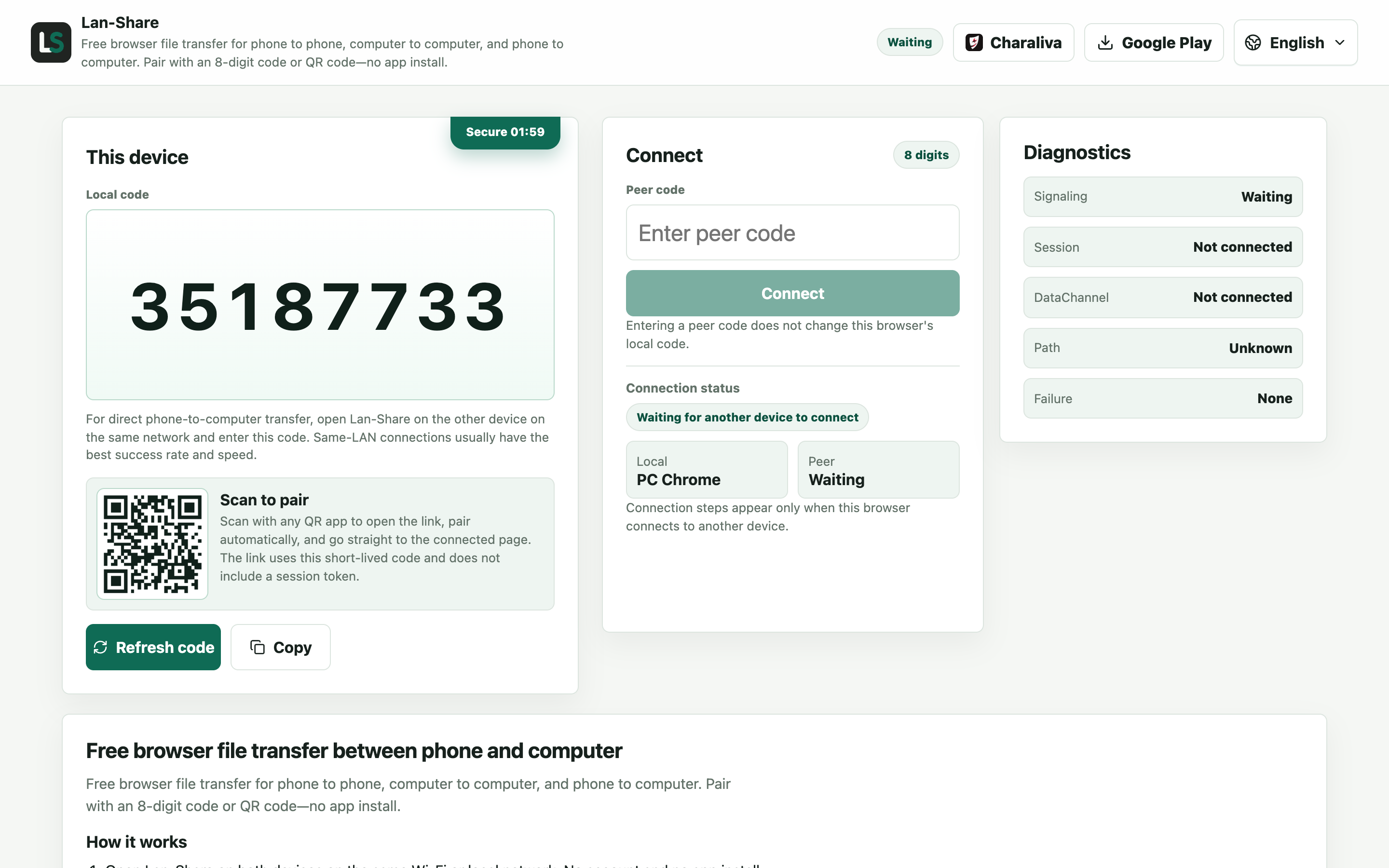
Chrome or Edge on Windows 10 or 11. Under Local code the page shows an 8-digit code and a QR code below it — that is the code the iPhone will use.
Join from the iPhone
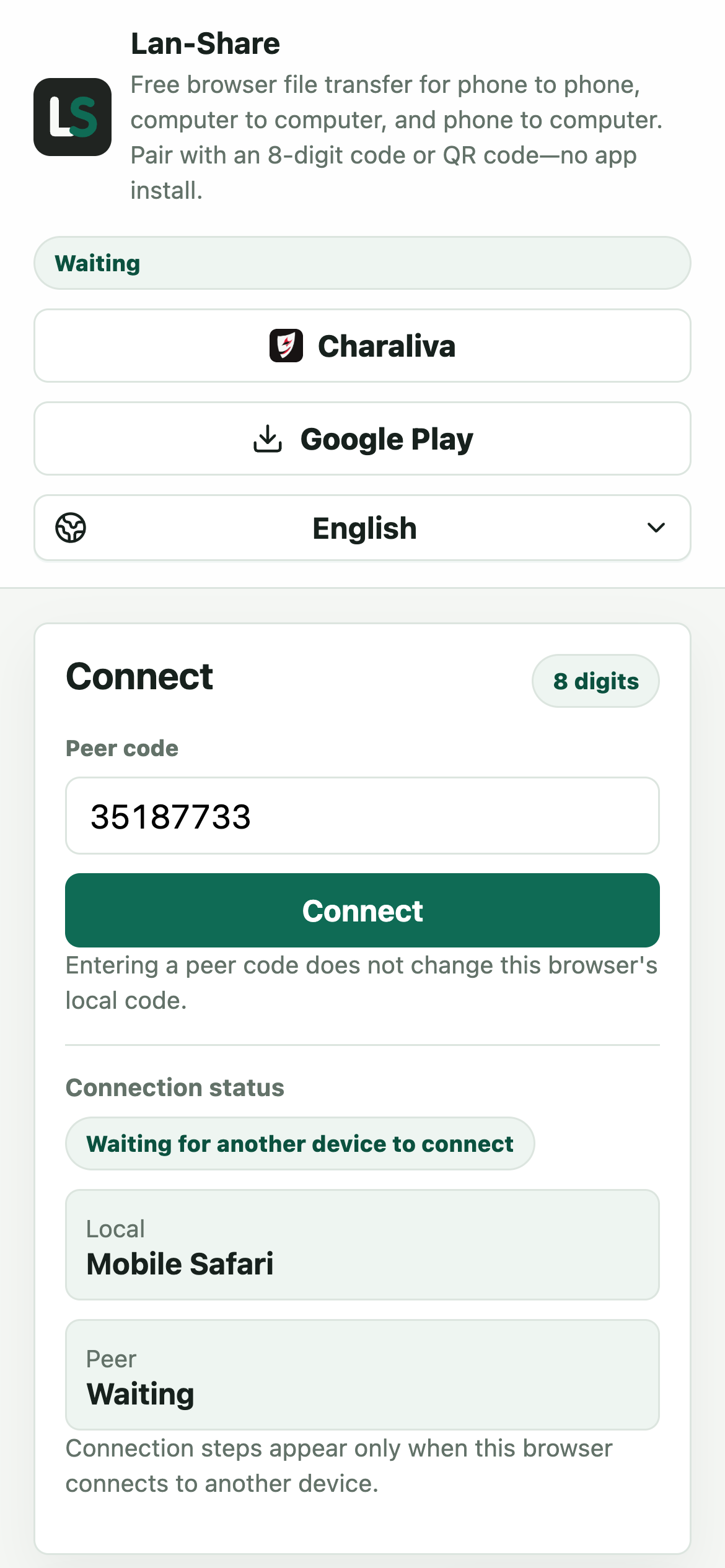
Open the same address in Safari on the iPhone and type the 8 digits into Peer code, or scan the QR code from the PC screen. Tap Connect and both pages switch to the conversation.
Pick the photos and videos
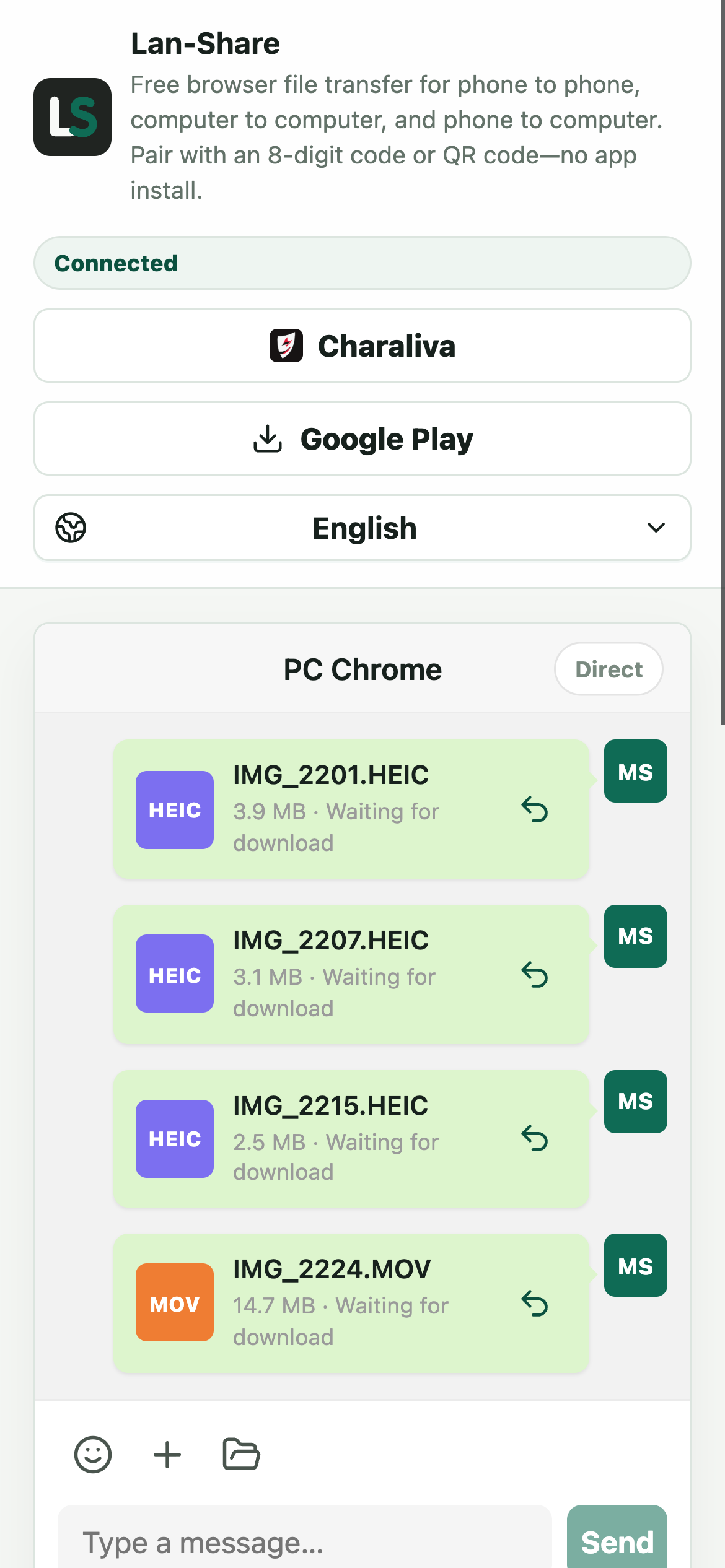
Tap the paperclip and choose Photo Library. You can select hundreds in one pass; each becomes a card in the conversation with its name and size, all still marked Waiting for download.
Download them on the PC
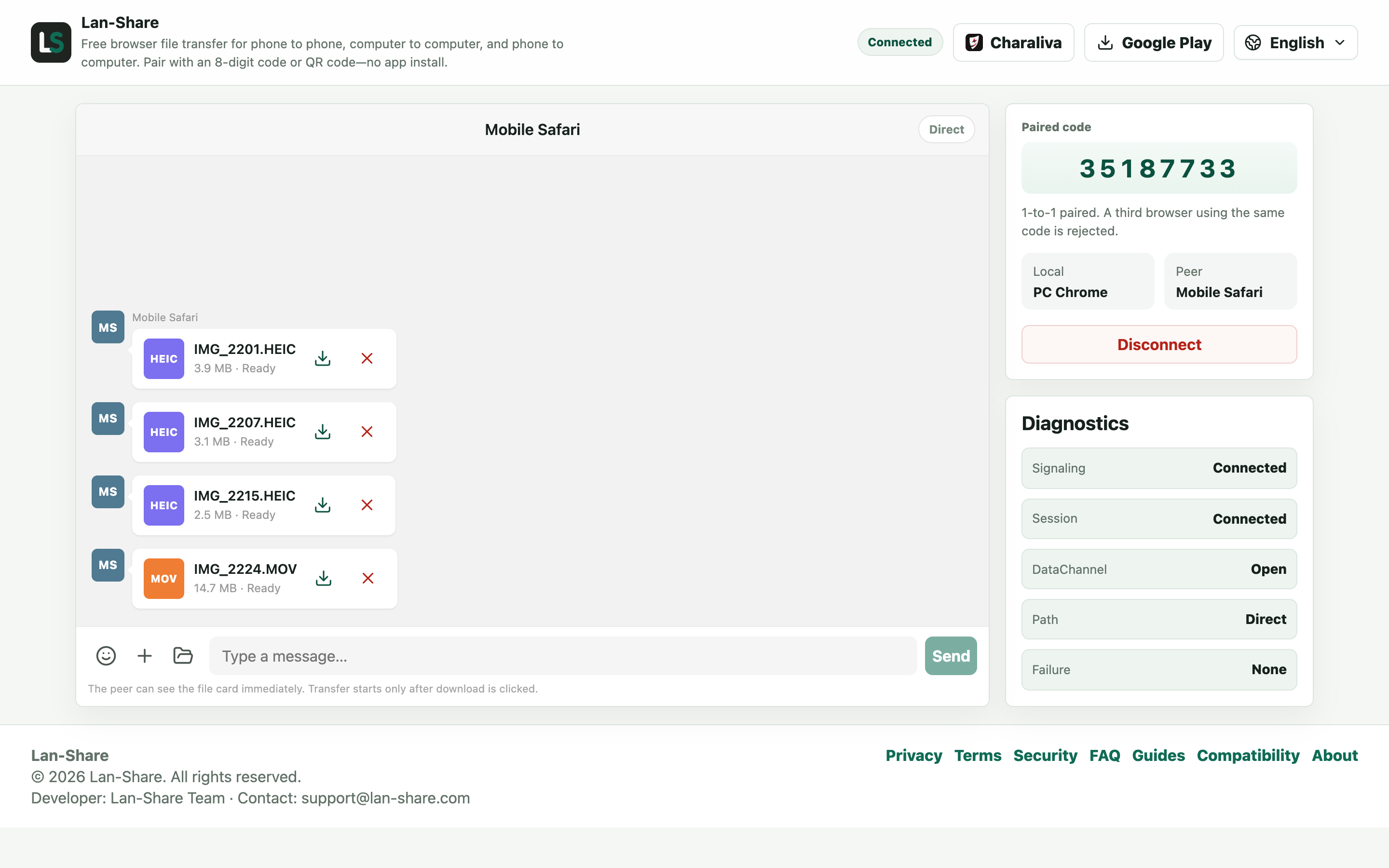
The PC's conversation shows the same cards marked Ready. Click the download icon on a card; Windows saves each one into Downloads under its original name, with the original bytes and no re-encoding.
Why chat apps and cloud albums are not the same thing
Messaging apps compress photos and re-encode videos to save bandwidth, and even their “original quality” options re-upload everything first. Cloud photo services keep you waiting on a full-library sync and may quietly hand out “optimized” versions when storage runs low. Lan-Share does neither: the file that lands on the PC is the file stored on the iPhone, byte for byte. HEIC photos stay HEIC, Live Photos and 4K clips keep the exact bits recorded by the camera.
Large batches and long videos
You can select hundreds of photos in one pass; they arrive as individual files in the browser's download folder. Keep both pages in the foreground and the iPhone screen awake while a transfer runs — iOS pauses backgrounded Safari tabs. Each session has a per-file limit, shown on the page (about 200 MB by default), so send long 4K clips one at a time, ideally close to the router. The receiver always confirms before any bytes move, so a mis-tap never sends anything.
Troubleshooting
- Photos arrive smaller than the originals
Why it happens That happens when they went through a chat app that re-encodes images, not through this transfer.
How to fix it Compare the byte size of the file before and after; Lan-Share sends the stored bytes, so the two match.
- A long video stalls at the end
Why it happens iOS suspends Safari when the screen locks during a large transfer.
How to fix it Keep the page in the foreground and raise Auto-Lock until the last card reads Downloaded.
- HEIC photos will not open in Windows Photos
Why it happens Lan-Share keeps HEIC as HEIC; Windows needs an extension to decode it.
How to fix it Install HEIF Image Extensions from the Microsoft Store, or convert a copy afterwards.
- Only some of the photos were selected
Why it happens The iOS picker only keeps what you tap; selecting an album does not select everything inside it.
How to fix it Reopen the picker and tap each photo, or use Browse to select a whole folder before sending.
FAQ
How do I get photos off my iPhone without iTunes?
Open lan-share.com on the PC and on the iPhone, pair with the 8-digit code or QR code, select the photos in the Gallery picker, and download them on the PC. No iTunes, no cable, and no app install are needed.
Do photos lose quality when transferred this way?
No. Lan-Share transfers the original files without re-encoding or converting, so HEIC photos and 4K videos arrive exactly as stored on the iPhone. File sizes on both ends match.
Can I transfer videos from iPhone to PC too?
Yes. The Gallery picker includes videos, and they travel with the same original-quality guarantee. Each session has a per-file limit, shown on the page (about 200 MB by default), so send long recordings one at a time and keep the iPhone near the router.
Do I need iCloud or an Apple account?
No. Lan-Share never touches iCloud, and nothing is uploaded to a cloud album. The transfer runs directly between the two browsers on your Wi-Fi.
Where do the photos go on the PC?
Into the browser's standard download folder, typically Downloads. Nothing is stored on Lan-Share's servers.