Send files from PC to Android without a cable
Getting files onto an Android phone is the transfer nobody plans for: a PDF for the commute, a package to install, a scan, a zip. The usual routes are emailing yourself an attachment, a cloud upload and a download, or a hunt for the cable that fits this port. Lan-Share runs the transfer in the direction that actually serves you — computer to phone — over the local network, in the browser, with nothing stored in between.
Step by step
Open lan-share.com on the computer
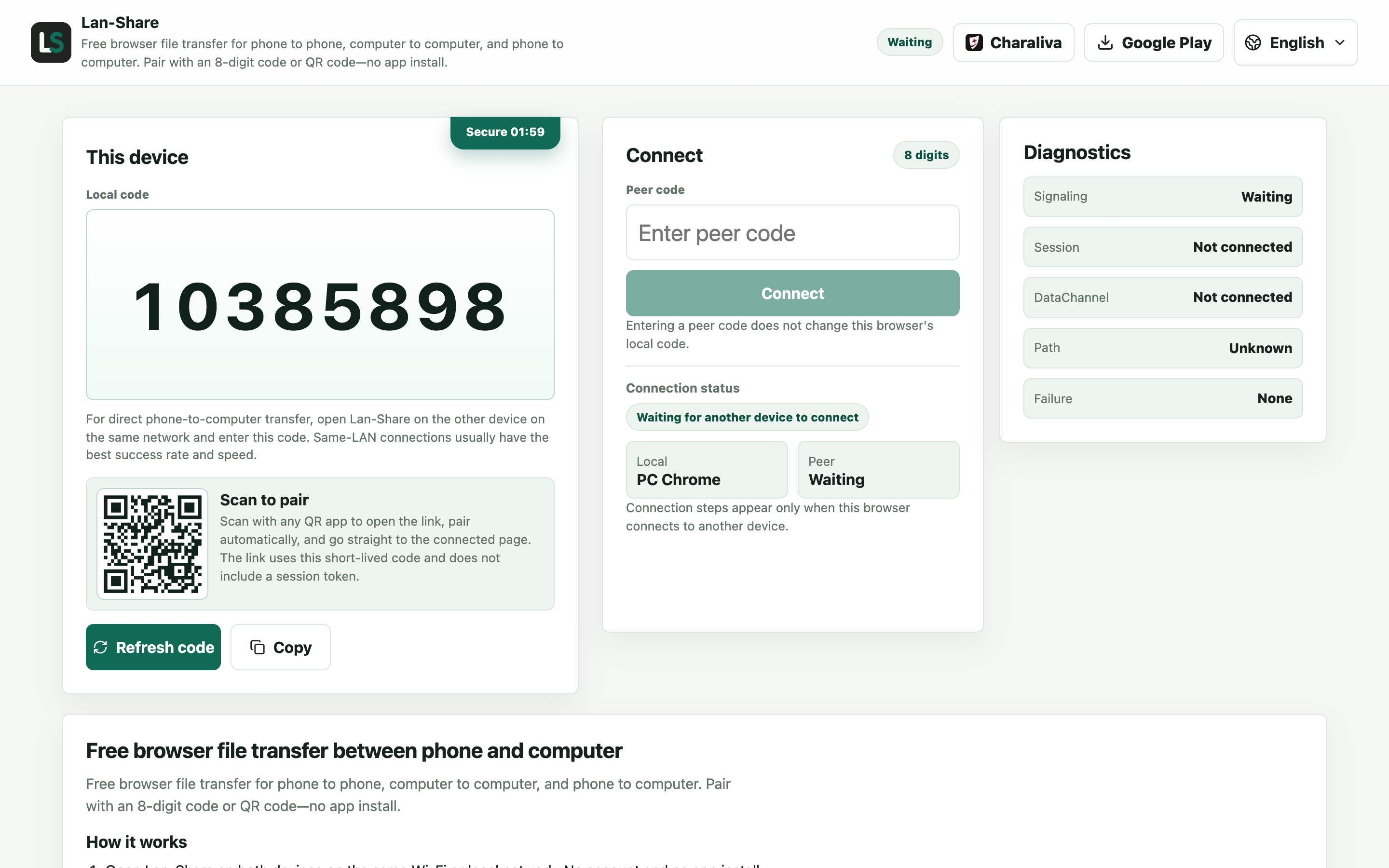
Chrome, Edge, or Firefox. Under Local code the page shows an 8-digit code and a QR code — the Android phone will use that code.
Join from the Android phone
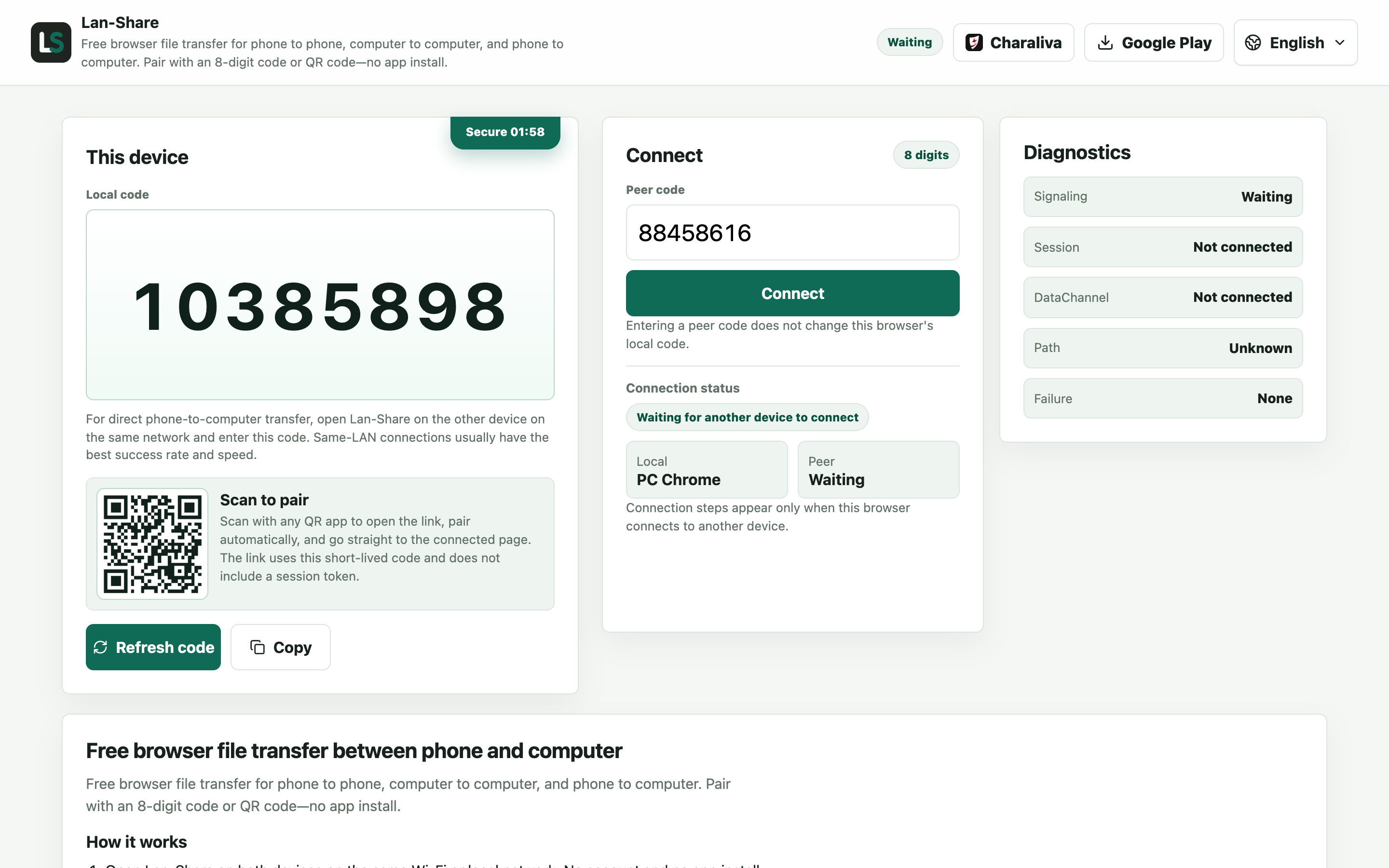
In Chrome on the phone, open the same address, type the code into Peer code, or scan the QR code from the screen, then tap Connect.
Pick the files on the computer
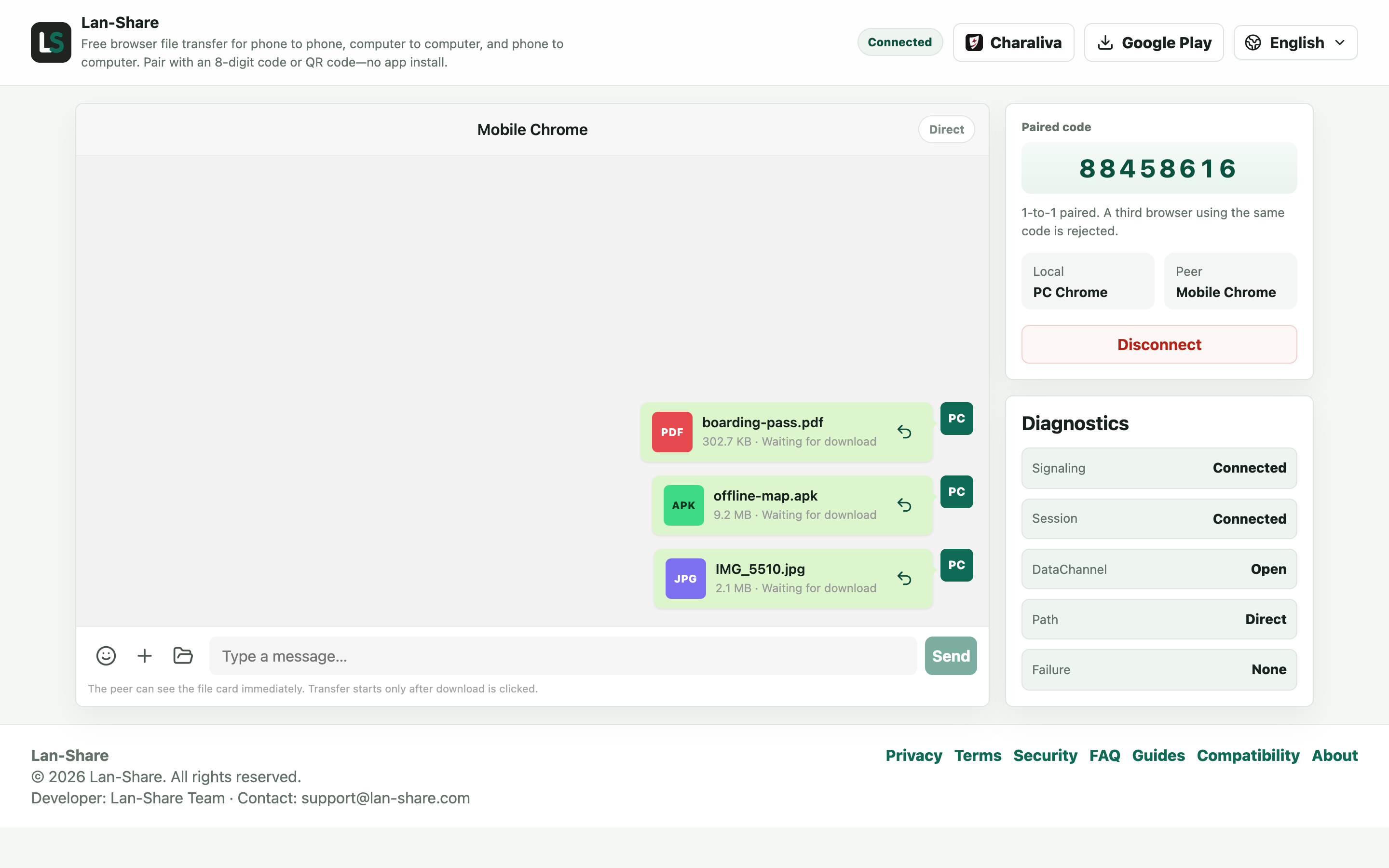
Click the paperclip and pick Files for documents, or Gallery for photos and videos. Every choice becomes a card in the conversation, still marked Waiting for download — nothing has been transferred yet.
Download on the phone
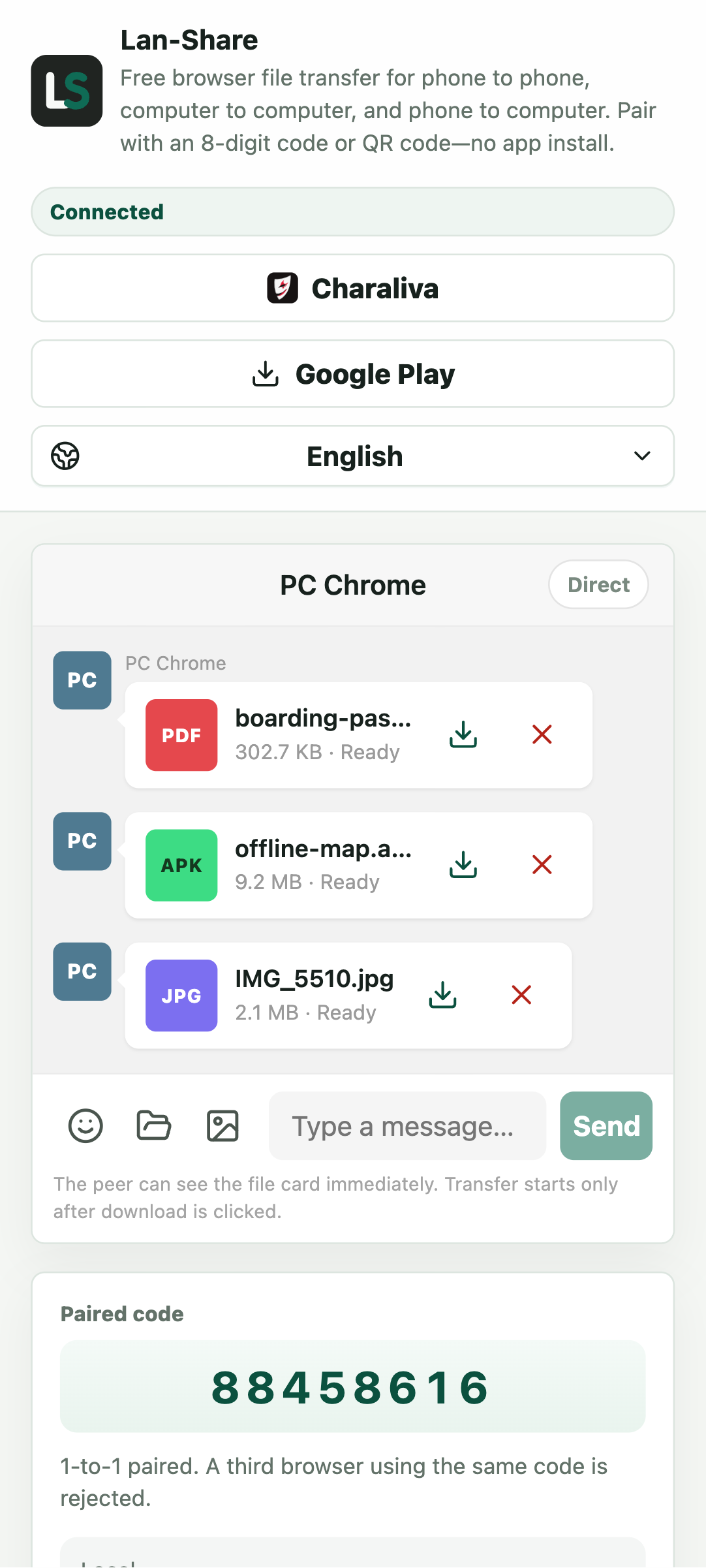
The same cards reach the phone's conversation marked Ready. Tap the download icon on a card; Android saves it to its Downloads folder, which the Files app opens directly.
What is worth sending to a phone
Documents to read, tickets and scans, an Android package to install, a batch of photos you just offloaded, or a zip a friend asked you to forward. If the file matters, keep the canonical copy on the computer and treat the phone as the reader, not the archive.
What the receiver on the phone sees
File names and sizes appear before any bytes move, so nothing starts unnoticed. Files arrive unchanged — no conversion, no re-encoding, and an installable package stays installable. Keep both pages in the foreground while a large transfer runs, and remember the session pairs exactly two devices: share the code only with the other device, and the room closes when you are done.
Troubleshooting
- The downloaded APK will not install
Why it happens Android refuses packages from unknown sources until that browser is allowed to install them.
How to fix it When prompted, allow installs from Chrome under Settings › Apps › Special access › Install unknown apps. Lan-Share does not alter the package.
- The file never appears in the Files app
Why it happens It was saved to the browser's own storage instead of the shared Downloads folder, usually because a different browser handled the download.
How to fix it Open the browser's own downloads list and use Share or Move to put the file in Downloads.
- The transfer stops when the phone screen turns off
Why it happens Android throttles a backgrounded Chrome tab and can suspend its network work.
How to fix it Keep Chrome in the foreground with the screen awake, and turn off battery optimisation for Chrome before sending something large.
- The computer page says the session ended
Why it happens Sessions are short-lived and strictly 1-to-1; closing either page or letting the code expire ends the pairing.
How to fix it Open lan-share.com on both devices again and pair with a freshly generated code.
FAQ
How do I send files from my PC to my Android phone?
Open lan-share.com on the computer and the phone, pair with the 8-digit code or QR code, pick the files on the computer, and download them on the phone.
Where do files land on the phone?
In the browser's Downloads — the Downloads folder and the Files app, depending on the browser and Android version.
Does it work from a Mac to Android?
Yes. Any computer browser can send to any phone browser on the same network, in either direction.
Will files be compressed in transit?
No. Files move byte for byte between the two browsers.
Is there a file size limit?
Each session has a per-file limit, shown on the page (about 200 MB by default).