Send files from PC to iPhone without iTunes
Sending a file to an iPhone is the direction Apple never made easy. On Windows, the Apple Devices app routes everything through app-by-app file sharing; on a Mac, AirDrop works but the file lands wherever the receiving app decides. The browser route is simpler: the iPhone opens lan-share.com, the PC pairs with the 8-digit code, and the file downloads straight into the iPhone's Files app.
Step by step
Open lan-share.com on the PC
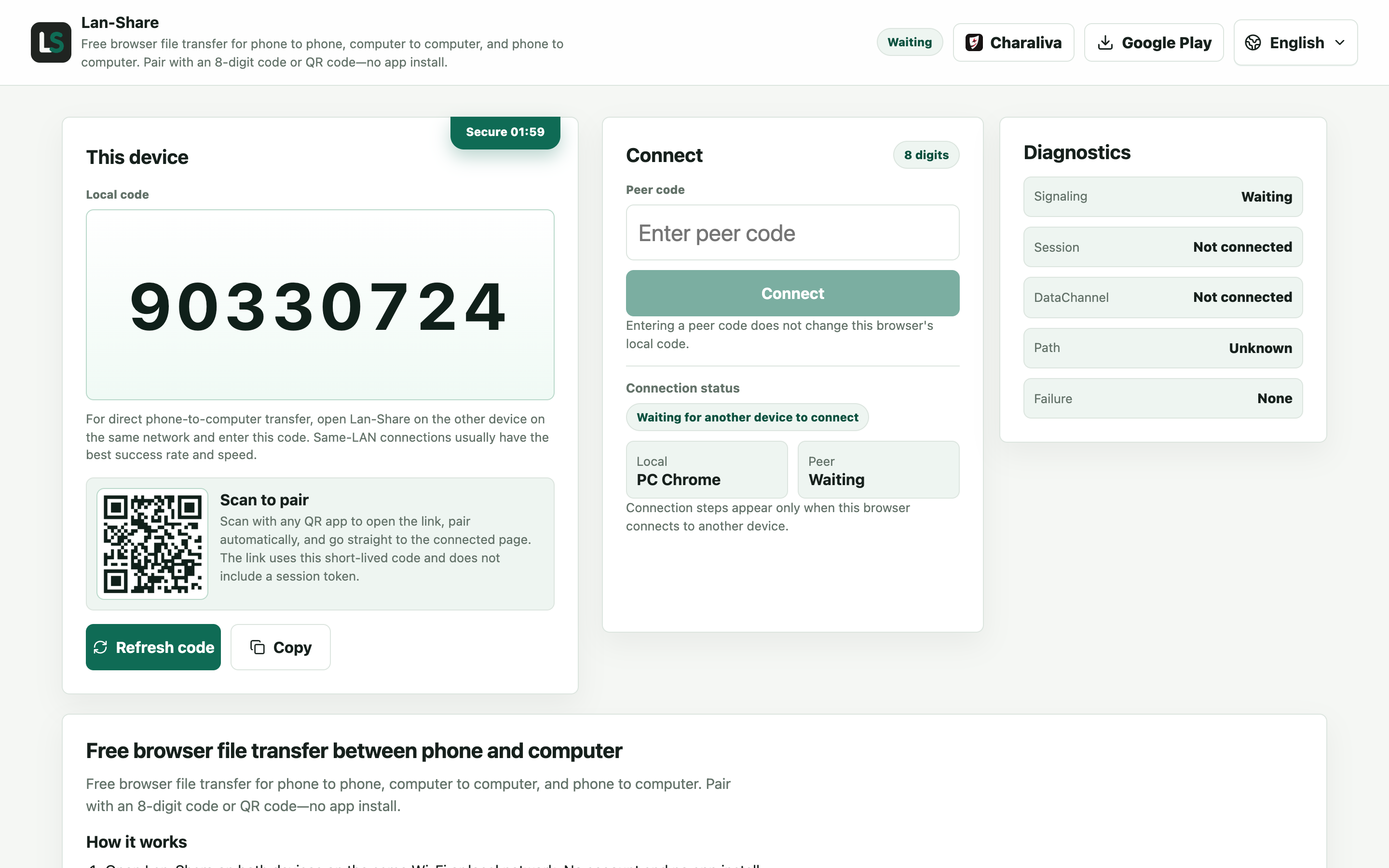
Any desktop browser. Under Local code the page shows an 8-digit code with a QR code below it — this is the code the iPhone will use.
Open the same page on the iPhone
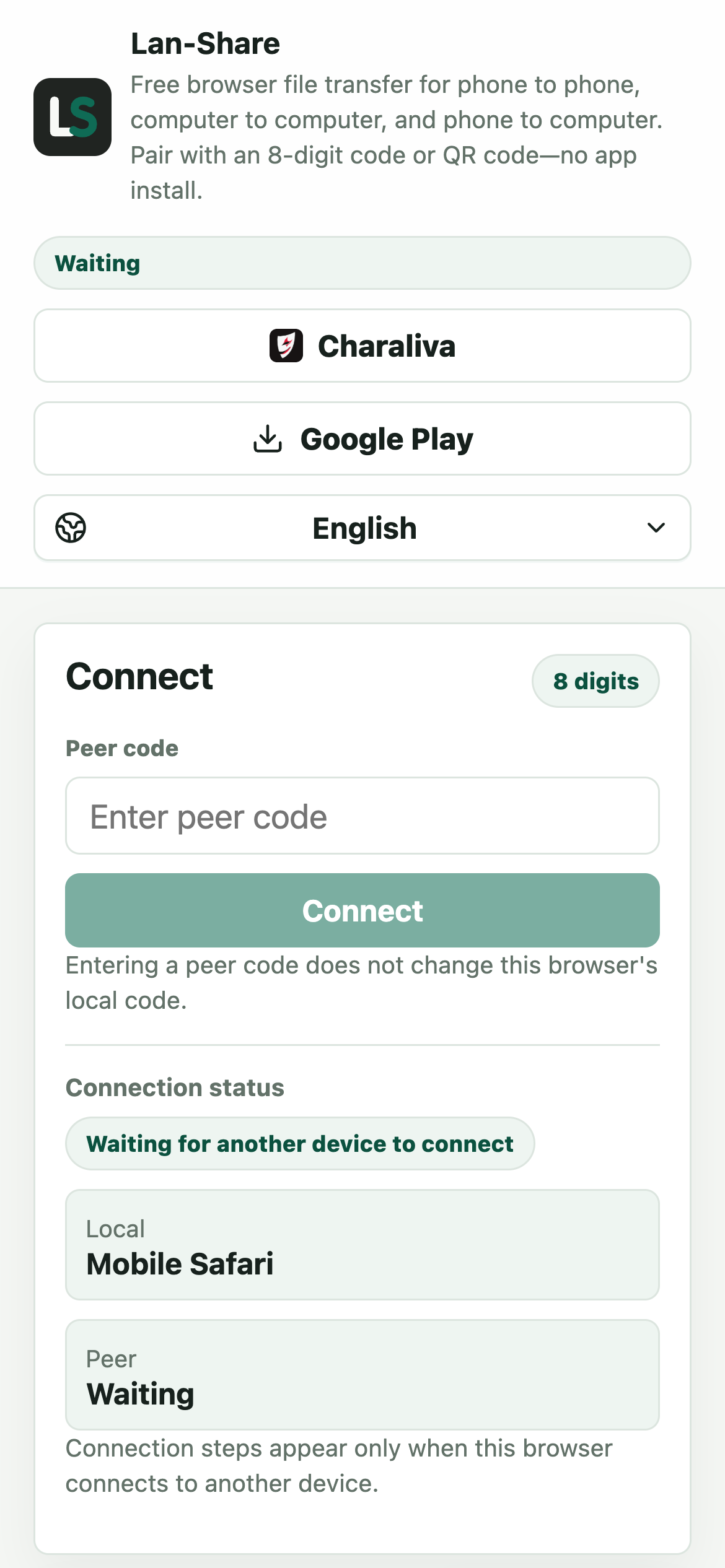
Safari on iOS. The iPhone also gets a local code of its own, which you will not need in this direction.
Enter the PC code on the iPhone
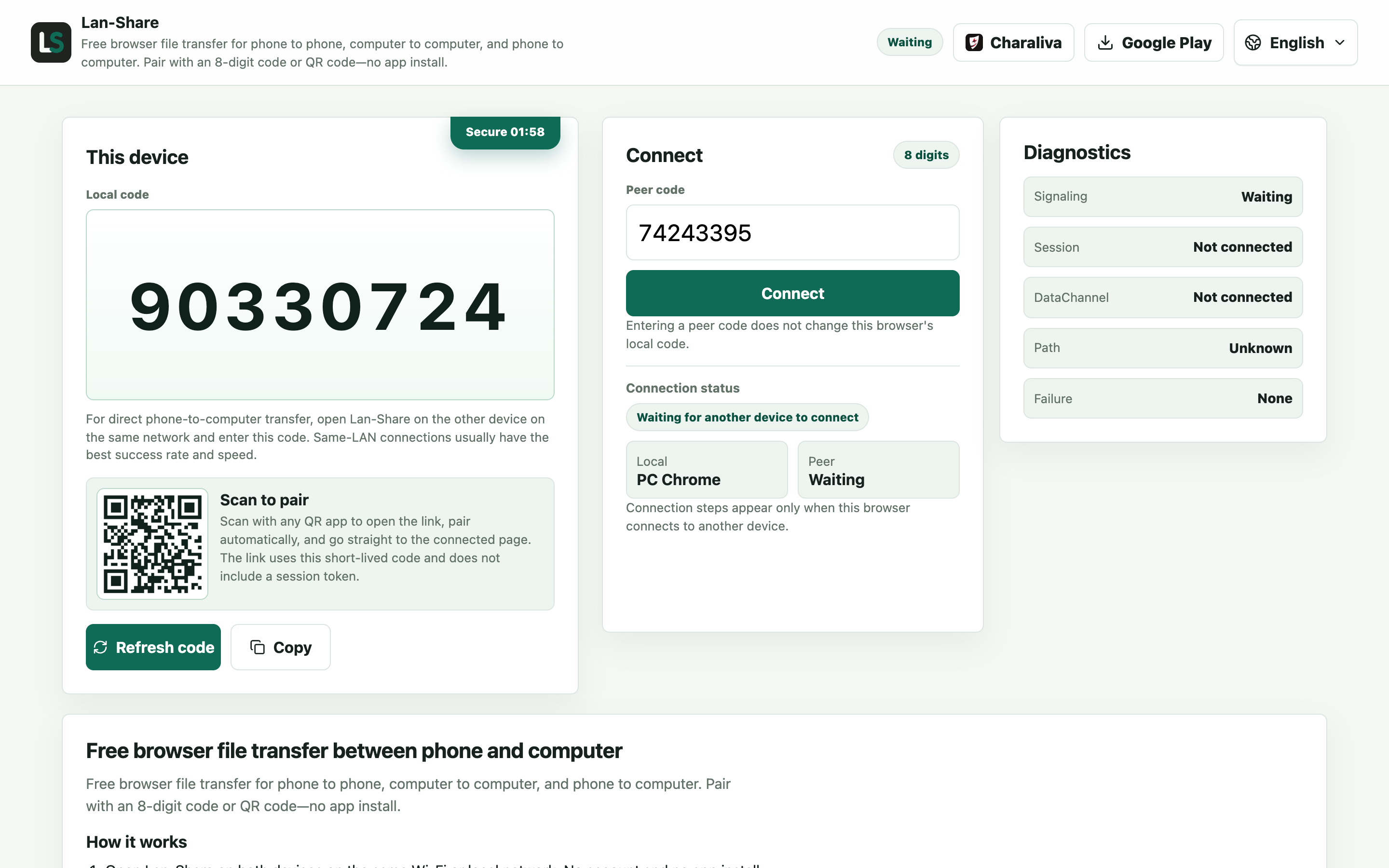
Type the 8-digit code into Peer code, or scan the QR code from the PC screen, then tap Connect. Both pages switch to the paired view.
Choose the files on the PC
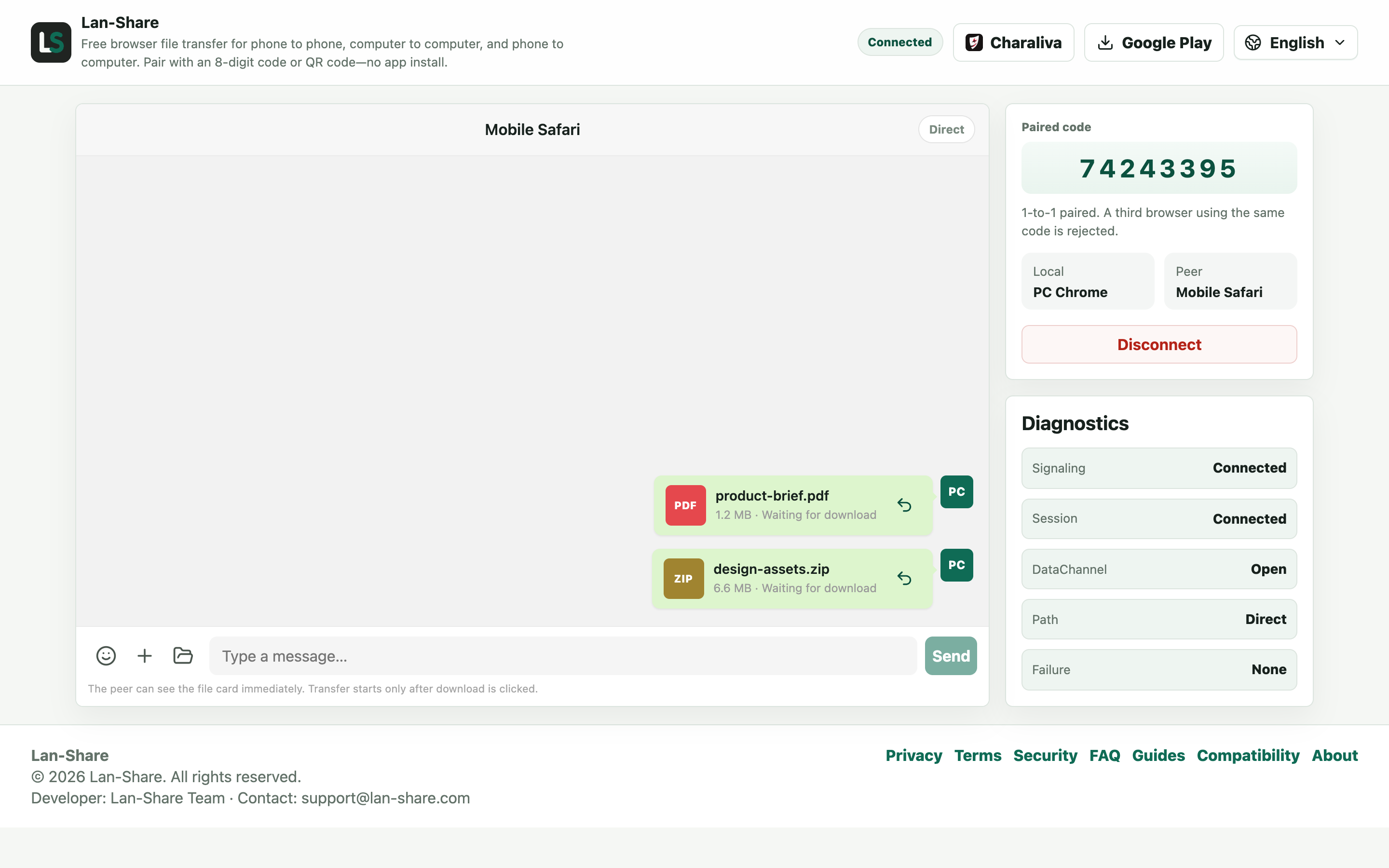
Click the paperclip and pick Files for documents, or Gallery for photos and videos. Every choice becomes a card in the conversation, still marked Waiting for download — nothing has been transferred yet.
Download on the iPhone and pick a save location
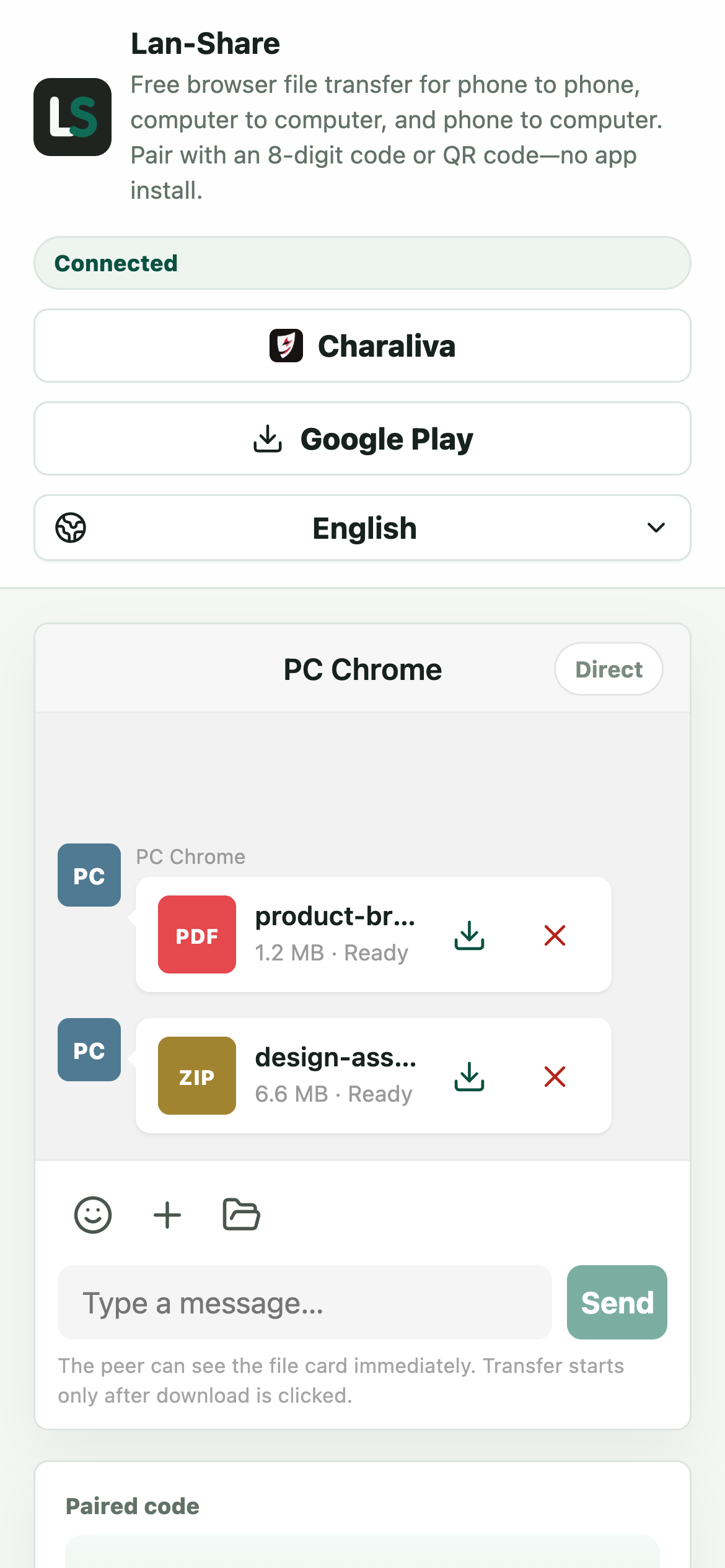
The same cards reach the iPhone's conversation marked Ready. Tap the download icon on a card; iOS asks where to put it and saves into the Files app — Downloads by default, or any folder you choose.
Why iTunes-style file sharing is awkward
Apple's file sharing model assumes each file belongs to some app's Documents folder, which means finding the right app, syncing over a cable on Windows, and hoping the file opens where you left it. A direct browser download is more predictable: iOS shows its own save dialog, and the file lands in Files, either in Downloads or in a folder you pick.
Keep in mind
iOS pauses backgrounded tabs, so keep Safari in the foreground and the screen awake until the transfer finishes. Each session has a per-file limit, shown on the page (about 200 MB by default). Photos land in the Files app rather than the Photos library — iOS does not let any app write straight to the Camera Roll — but from Files you can save them to Photos in a couple of taps. The receiver confirms first, so nothing arrives unasked.
Troubleshooting
- A downloaded photo does not show up in the Photos app
Why it happens iOS only lets a browser download land in the Files app; no website can write straight to the Camera Roll.
How to fix it Open the file in Files, tap Share, then Save Image (or Save Video) to copy it into Photos.
- The download finishes but iOS cannot open the file
Why it happens iOS picks a handler by file type, so an unfamiliar extension has nothing to open it.
How to fix it Open it from Files and choose an app, or use Share to hand it to a compatible app.
- The transfer freezes when the iPhone screen locks
Why it happens iOS suspends Safari's networking for a locked screen or a backgrounded tab.
How to fix it Keep Safari in the foreground and the iPhone awake, and raise Auto-Lock in Settings, until the last file reads Downloaded.
- The PC page reports that the session has ended
Why it happens Sessions are short-lived and strictly 1-to-1: closing either page, or letting the code expire, ends the pairing.
How to fix it Open lan-share.com on both devices again and pair with a freshly generated code.
FAQ
How do I send files from a PC to an iPhone without iTunes?
Open lan-share.com on both the iPhone (Safari) and the PC, pair with the 8-digit code or QR code, pick files on the PC, and tap download on the iPhone. iTunes and the Apple Devices app are not involved.
Where do the files go on the iPhone?
Into the Files app: the Downloads folder by default, or wherever you choose in the iOS save dialog. From Files you can move them anywhere or open them in any app.
Can I send photos this way?
Yes. Photos are saved into Files rather than directly into the Photos library, because iOS does not let apps write to the Camera Roll — from Files, tap a photo and save it to Photos in a couple of steps.
Does it work from both Windows and Mac?
Yes. Any desktop browser works for the sending side, and the same pairing flow serves both directions — iPhone to PC covered the other way.
Do I need the same Apple ID or iCloud?
No. There is no account and no iCloud in the flow; files move directly between the two browsers over your local network.