AirDrop alternative for Windows, Android, and PC
AirDrop is excellent, as long as every device involved is made by Apple. The moment an Android phone, a Windows laptop, or a mixed group of devices is involved, the built-in flow stops working. Lan-Share fills exactly that gap: a free, browser-based way to send files between any two devices on the same network, with no app install and no account.
Step by step
Open lan-share.com on the Windows PC
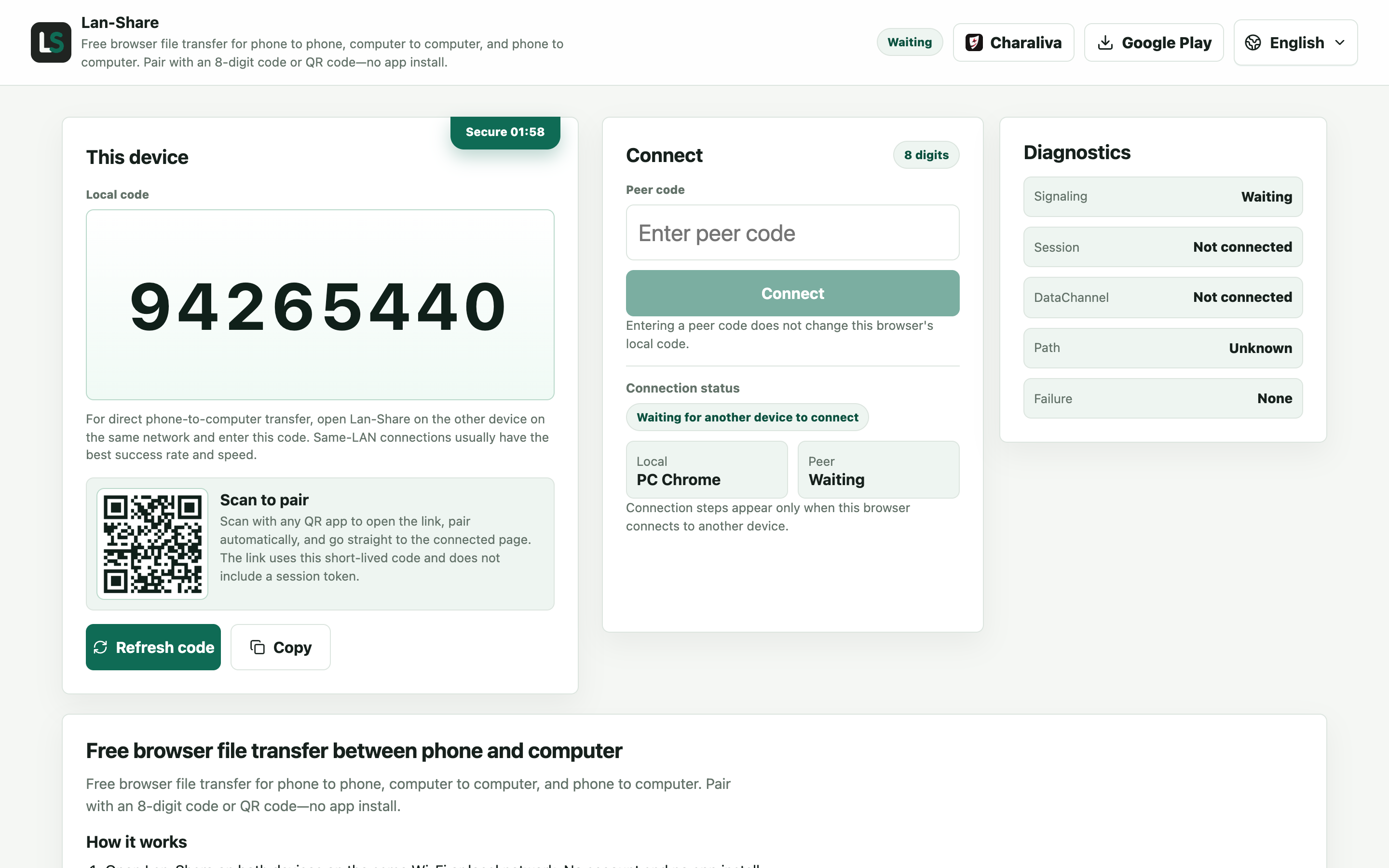
Anything AirDrop cannot reach is exactly what a browser can. Under Local code the PC shows an 8-digit code and a QR code — no Apple account, no pairing dialog, no Bluetooth.
Join from the iPhone
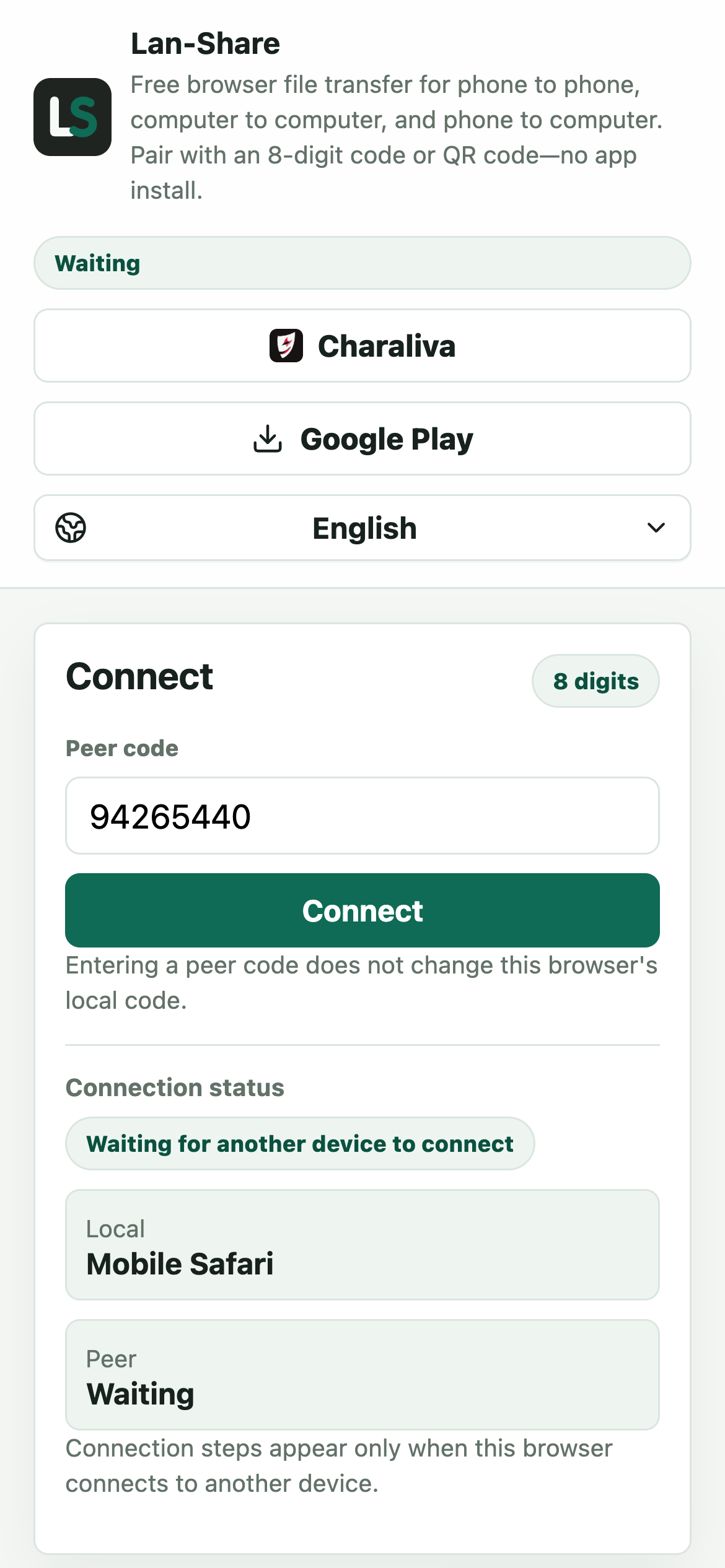
In Safari on the iPhone, open the same address and type the digits into Peer code, or scan the QR code from the screen. Tap Connect and both pages switch to the conversation.
Send from the iPhone
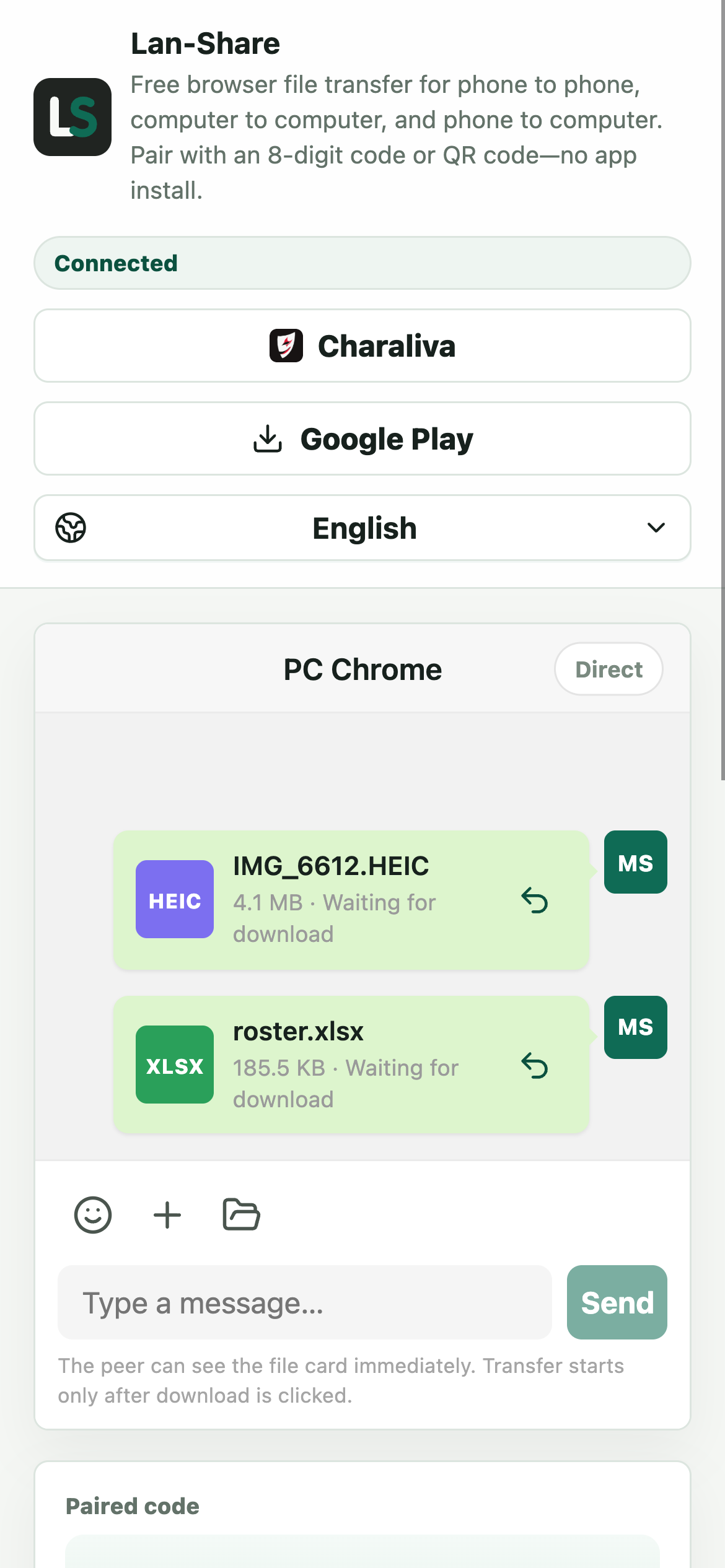
Tap the paperclip, then Photo Library for photos or Browse for documents. Each item becomes a card in the conversation marked Waiting for download.
Download on the PC
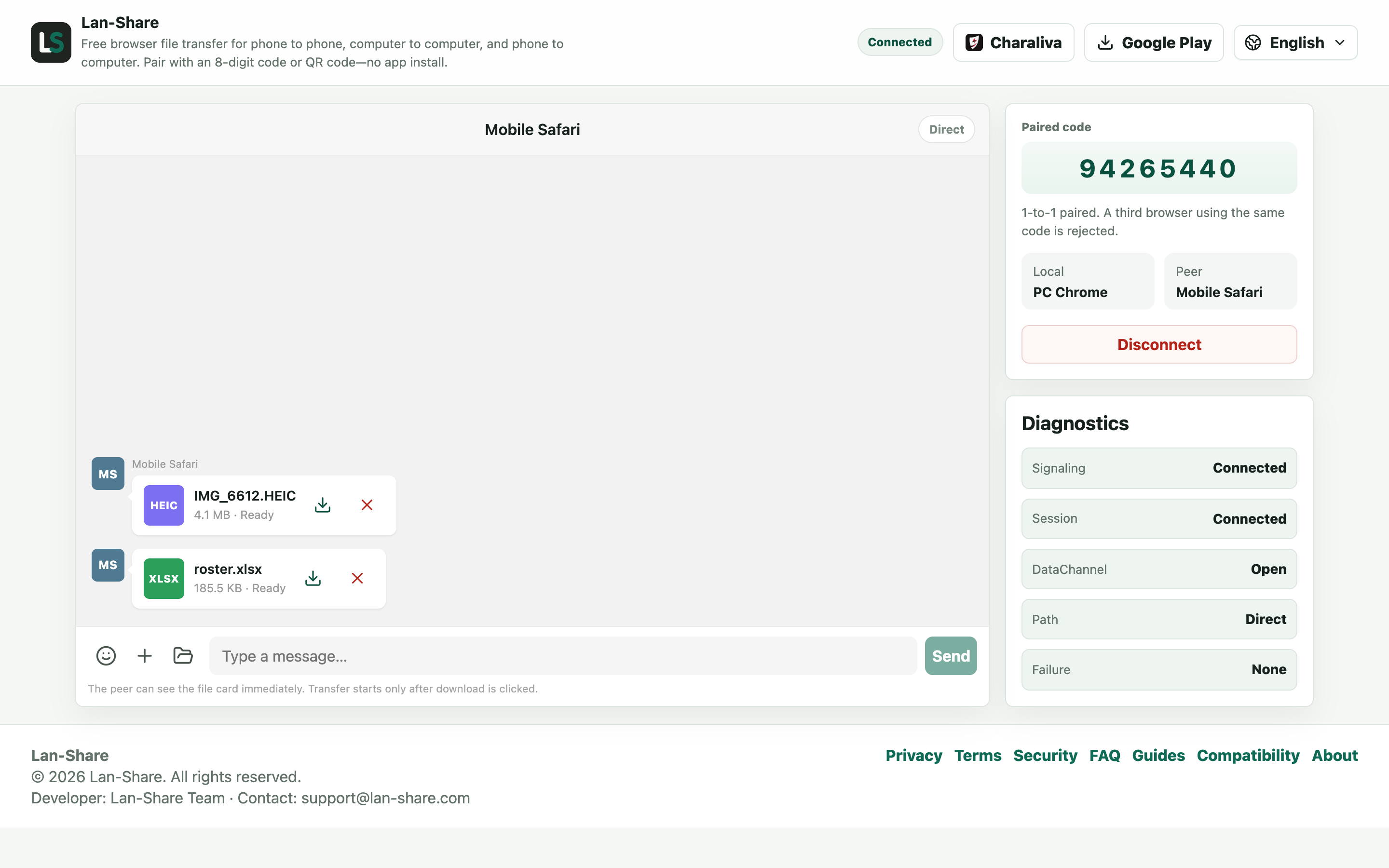
The PC's conversation shows the same cards marked Ready. Click the download icon; Windows saves them under their original names, with the original bytes.
Where AirDrop does not work
AirDrop uses Apple's proprietary wireless protocol, so it only connects Apple devices to Apple devices. That leaves three everyday situations uncovered: sending files from an iPhone to a Windows PC, sending from an Android phone to a Mac, and sending between an Android phone and an iPhone. Cloud drives and messaging apps work around the problem, but they upload your files to a server first and often compress photos and videos along the way.
How Lan-Share replaces the AirDrop workflow
Lan-Share keeps the part of AirDrop people like, opening a page, picking the other device, sending, and drops the platform lock-in. Open lan-share.com on both devices, enter the 8-digit code from one device on the other (or scan the QR code), choose files, and let the receiver confirm the download. Because it runs in the browser, the same flow works on iPhone, iPad, Android, Windows, Mac, and Linux.
What Lan-Share does differently
Files travel directly between the two browsers over your local network, so file contents are not uploaded to Lan-Share servers. The receiver always sees file names and sizes first, and the actual bytes only start moving after they click download. Codes are short-lived and each code pairs exactly two devices.
When AirDrop is still the better choice
If both devices are Apple devices on the same Wi-Fi and the content is a quick photo or link, AirDrop is excellent and built in. Lan-Share is aimed at the cross-platform case: iPhone to Windows, Android to Mac, or a mixed household, classroom, or office where not everyone is on the same ecosystem.
Troubleshooting
- The two devices never pair
Why it happens Guest Wi-Fi, VPN clients, and some routers isolate clients even on one network.
How to fix it Join the same main network on both, and turn the VPN off.
- The transfer stops when the screen locks
Why it happens Both iOS and Android suspend a backgrounded browser tab.
How to fix it Keep both pages in the foreground until the last file reads Downloaded.
- A file larger than the limit is refused
Why it happens The per-file limit is shown on the page, about 200 MB by default.
How to fix it Send it on its own in a fresh pairing after checking the stated limit.
- The received photo looks softer than the original
Why it happens Something in the chain re-encoded it — this route sends the stored bytes unchanged.
How to fix it Compare file sizes; if they match, the bytes are original.
FAQ
Is there an AirDrop for Windows?
Apple has not brought AirDrop to Windows, and there is no official cross-platform version. Windows users typically choose an installed app such as Quick Share or LocalSend, or a browser-based tool like Lan-Share that needs no installation.
Can I AirDrop from an iPhone to an Android phone?
No. AirDrop only connects Apple devices. To send files from an iPhone to an Android phone, open Lan-Share in the browser on both devices, pair with the code or QR code, and transfer over the same Wi-Fi or a phone hotspot.
Does Lan-Share require an app or an account?
No. It runs entirely in the browser. Open the site, pair two devices with an 8-digit code, and send. There is nothing to install and no sign-up.
Does Lan-Share upload my files to a server?
The page itself loads over the internet and the server handles pairing signals, but file contents travel directly between the two browsers on your local network and are not intentionally stored by the service.
Is Lan-Share free?
Yes. Browser-to-browser transfers are free and do not require an account.