Transfer files from iPhone to PC over Wi-Fi
Getting photos, videos, or documents off an iPhone and onto a Windows PC usually means a USB cable plus the Apple Devices app, an iCloud upload, or emailing files to yourself. Lan-Share takes a different route: both devices open a web page, an 8-digit code pairs them, and the file travels directly over your local network.
Step by step
Open lan-share.com on the Windows PC
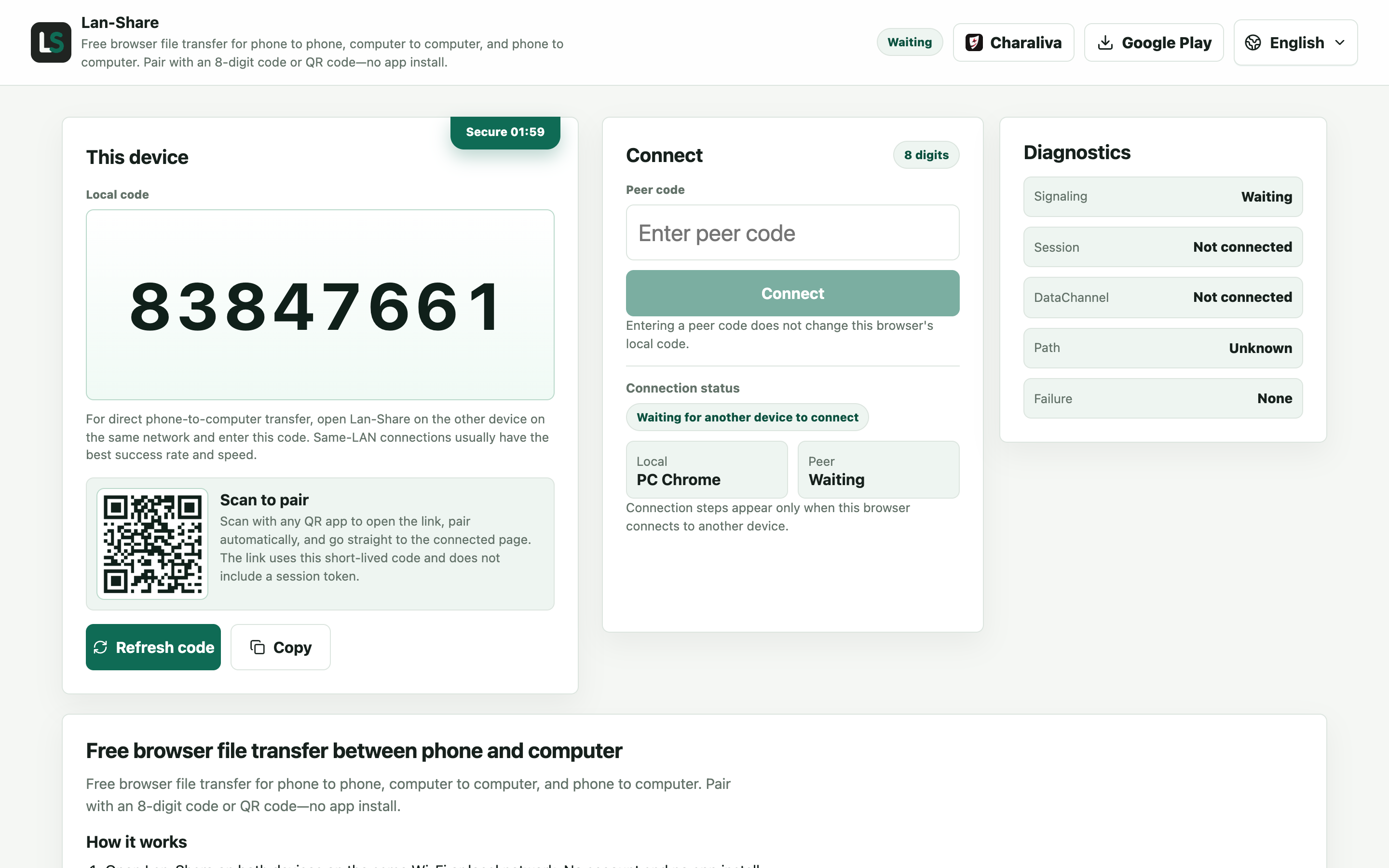
Open the site in Edge, Chrome, or Firefox. Under Local code the page shows an 8-digit code, and the QR image underneath encodes the same code.
Pair from the iPhone
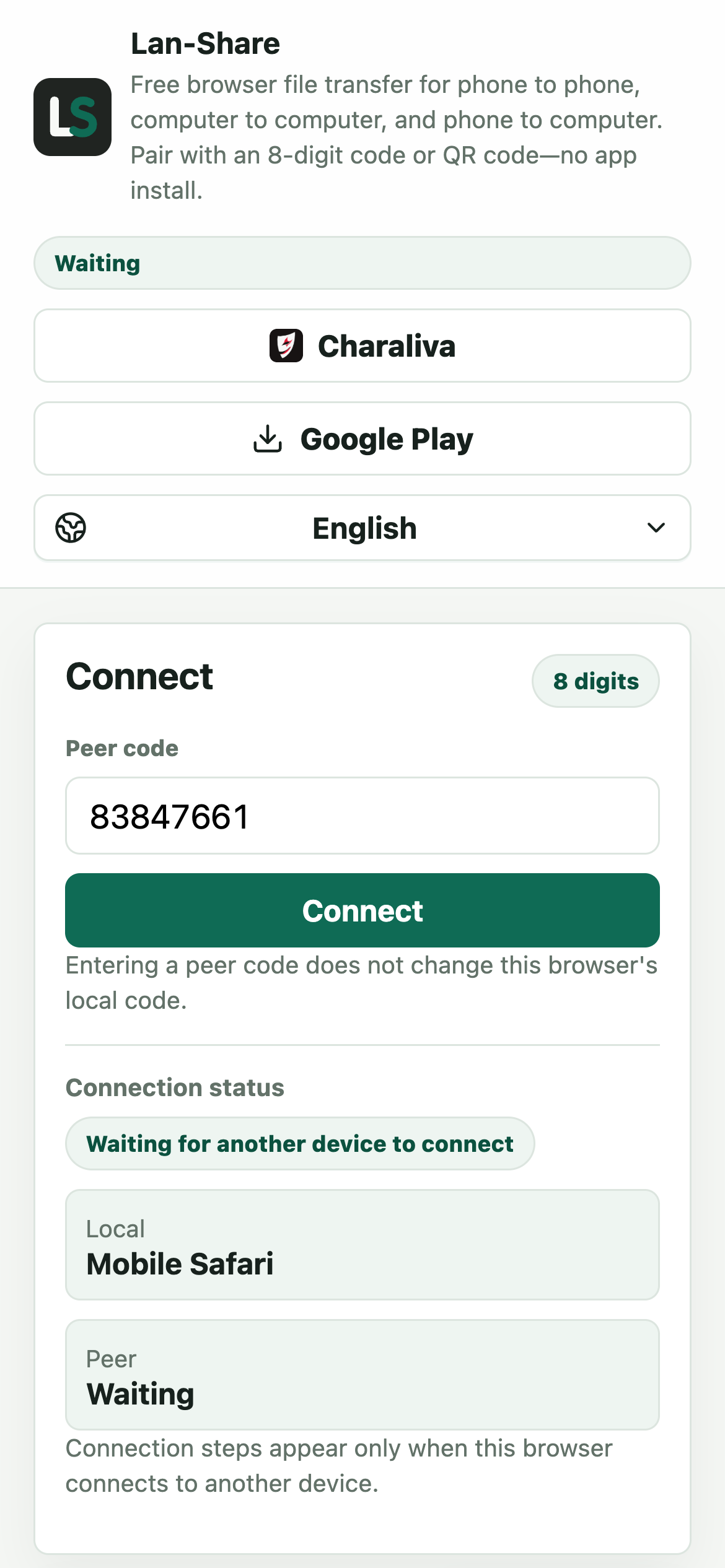
In Safari on the iPhone, open the same address and type the code into the Peer code field, or point the camera at the QR code on the PC screen. Tap Connect and both pages switch to the paired view.
Pick what to send on the iPhone
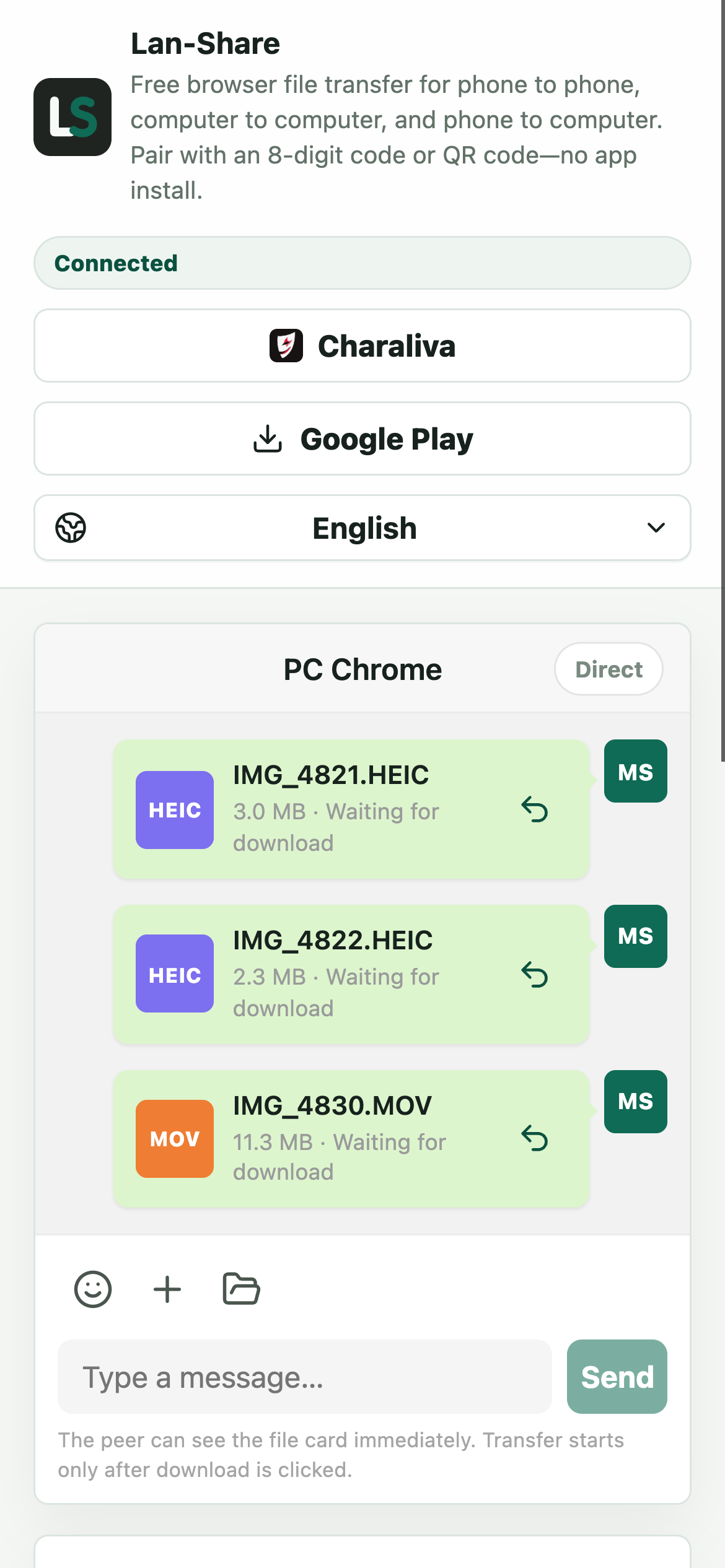
Tap the paperclip and iOS opens its own picker: choose Photo Library for photos and videos, or Browse for documents. Each choice lands in the conversation as its own card with the name and size, and still says Waiting for download.
Download on the PC
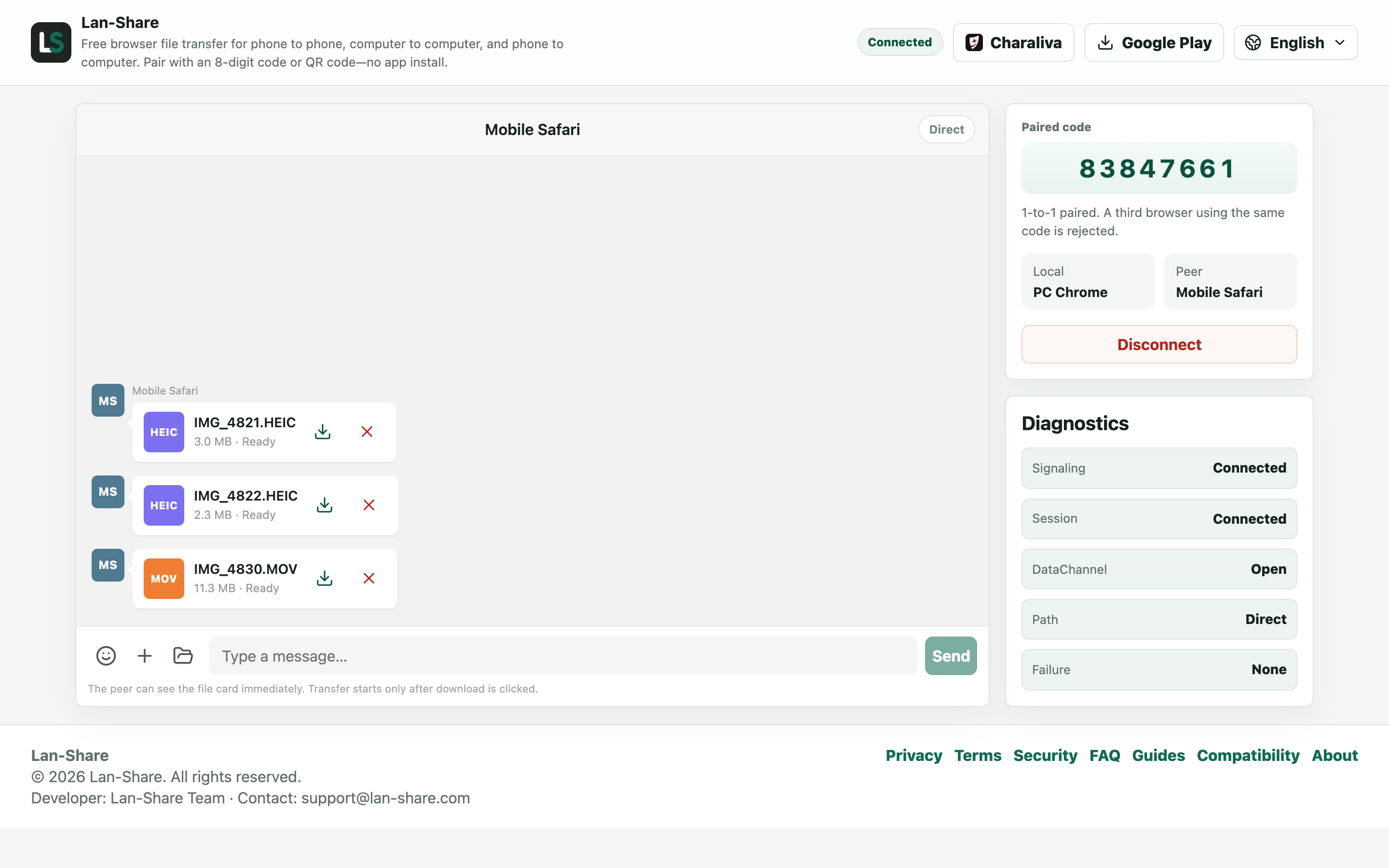
The same cards arrive in the PC's conversation, each marked Ready. Bytes move only after you approve them: click the download icon on a card. Files land in the browser's download folder unchanged.
Skip iTunes, cables, and cloud uploads
Wired transfer is fast but needs the right cable and Apple's Windows apps, and it still routes photos through the PC's importer. iCloud Photos is convenient until you are on Windows, waiting for a full-resolution download, or working on a slow connection. Lan-Share keeps things local: one browser page on the iPhone (Safari works), one on the PC, one short-lived code.
Good to know for photos and videos
The receiver always confirms before file content transfers, so an accidental pick does not leak anything. Keep both pages in the foreground while a transfer is running: iOS Safari may pause backgrounded tabs. For very large videos, stay close to the router and keep the screen awake. Files arrive in the browser's download folder exactly as stored on the phone. Lan-Share does not convert HEIC photos or re-encode videos.
Troubleshooting
- The QR code opens the page on the iPhone but nothing pairs
Why it happens An 8-digit code expires two minutes after it is created, and refreshing the code on the PC invalidates the previous one.
How to fix it On the PC, click Refresh code, then scan or type the new code within the two-minute window.
- A large video stalls when the iPhone screen locks
Why it happens iOS suspends Safari's networking for a locked screen or a backgrounded tab.
How to fix it Keep Safari in the foreground and the iPhone awake, and raise Auto-Lock in Settings, until the last file reads Downloaded.
- A photo arrives as HEIC and Windows Photos cannot open it
Why it happens Lan-Share streams the stored file byte-for-byte and never re-encodes or converts it.
How to fix it Nothing went wrong. Install the HEIC Image Extensions for Windows, or convert the copy afterwards; the original quality is intact.
FAQ
How do I transfer photos from iPhone to PC without iTunes?
Open lan-share.com on the PC and on the iPhone, pair with the 8-digit code or QR code, select the photos on the iPhone, and download them on the PC. No iTunes, no cable, and no app install are required.
Does it work with Safari on iPhone?
Yes. Lan-Share targets current Safari versions. The Files and Gallery buttons open iOS's native pickers so you can choose photos, videos, and documents.
Where do transferred files go?
Files go to the browser's standard download location on the PC, typically the Downloads folder. Nothing is stored on Lan-Share's servers.
Are HEIC photos converted to JPG?
No. Lan-Share transfers the original file unchanged, so HEIC photos stay HEIC and videos keep their original format and quality.
Why did the transfer stop when the iPhone locked?
iOS can suspend Safari's networking when the screen locks or the tab goes to the background. Keep the page open and the phone awake until the transfer finishes.