Transfer files from phone to laptop over Wi-Fi
Phone to laptop is the most ordinary transfer there is, and it is still the one that stalls: the wrong cable, a driver that wants installing, a cloud library that refuses to sync on the laptop's operating system, or a chat app that quietly re-encodes the video you just shot. Lan-Share treats it as what it is — two devices, one network, one web page. Open lan-share.com on both, pair with an 8-digit code, and the file lands in the laptop's Downloads folder exactly as it left the phone.
Step by step
Open lan-share.com on the laptop
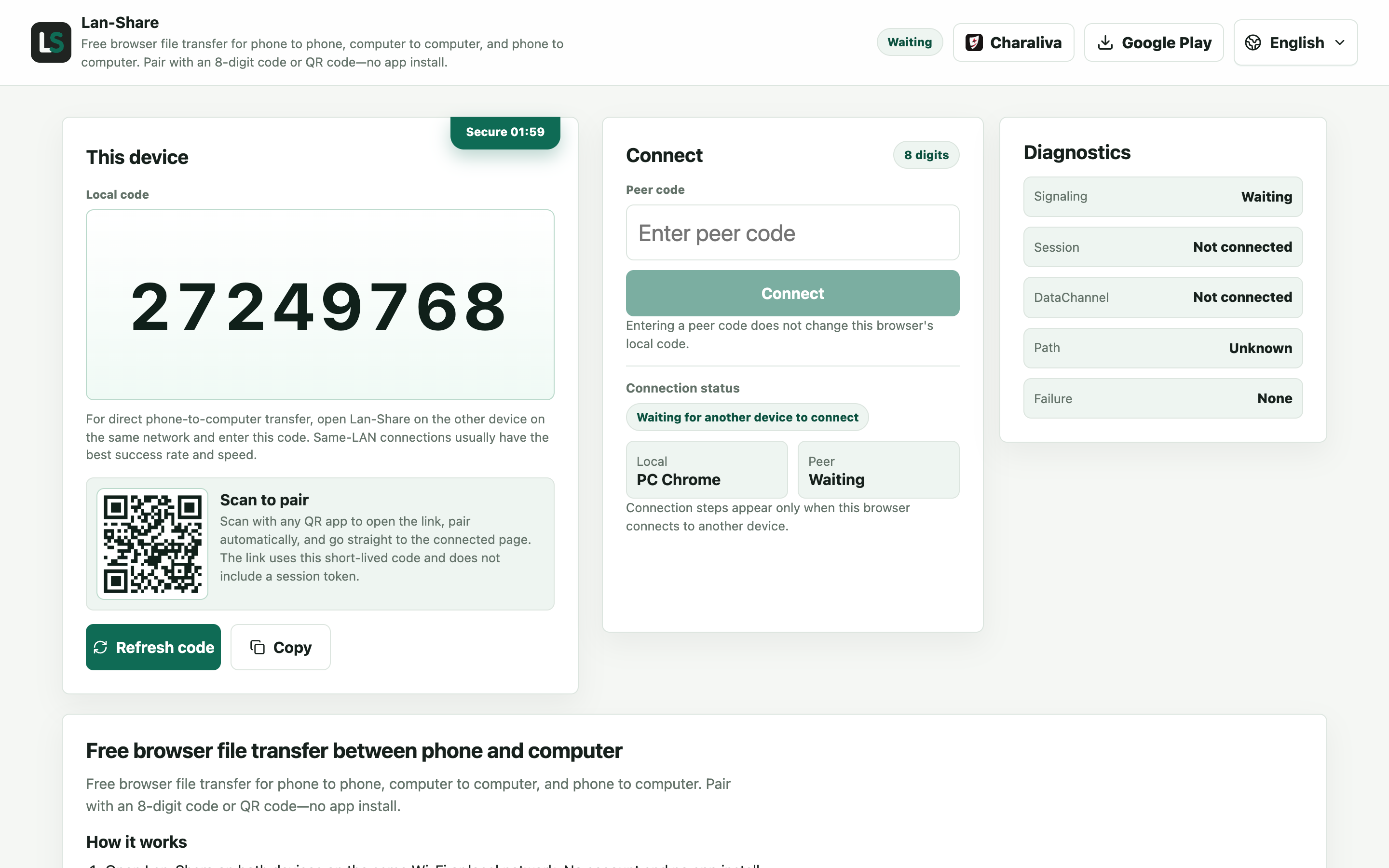
Any Windows laptop, MacBook, or Chromebook with a current browser. Under Local code it shows an 8-digit code with a QR code below it.
Join from the phone
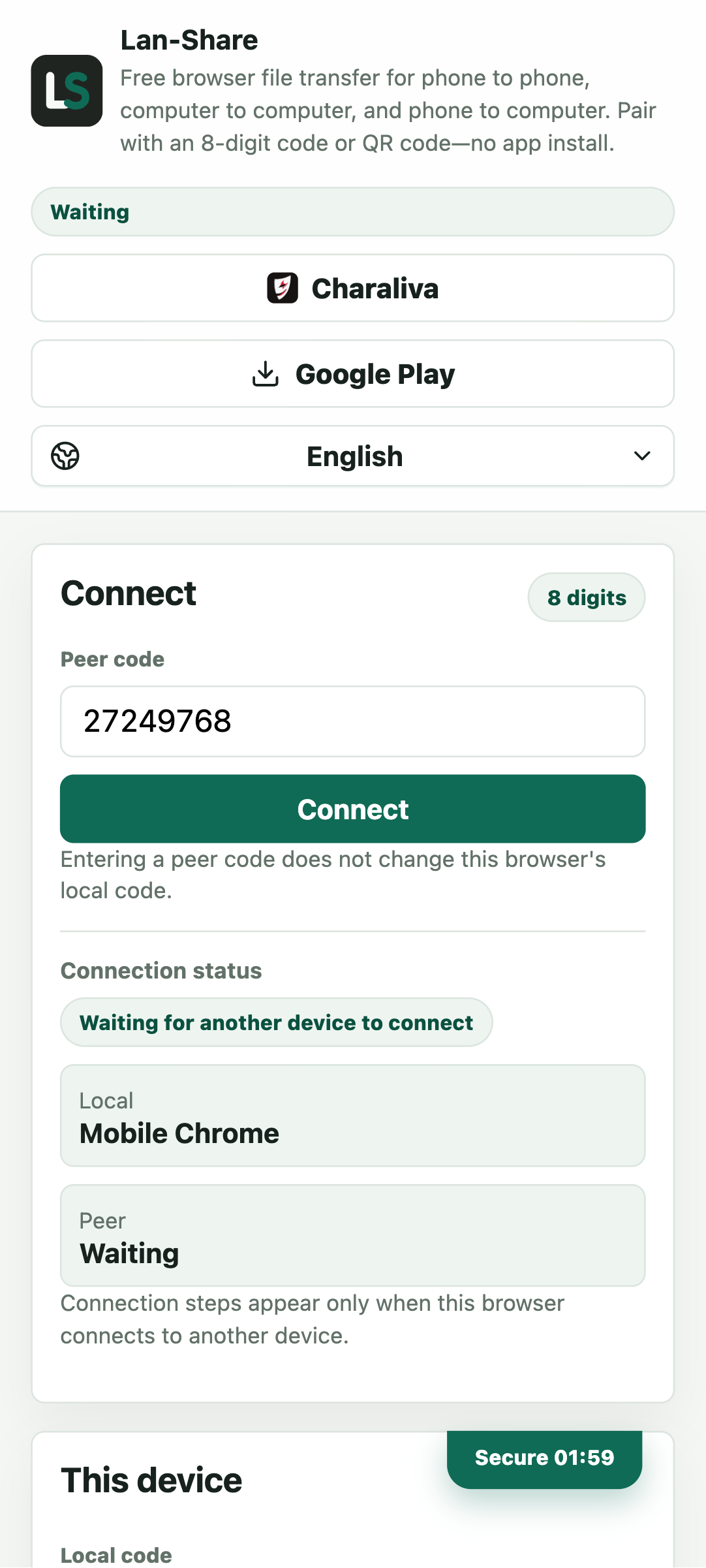
Open the same address on the phone and enter the 8 digits in Peer code, or scan the QR code from the laptop. Tap Connect and both pages switch to the conversation.
Pick the files on the phone
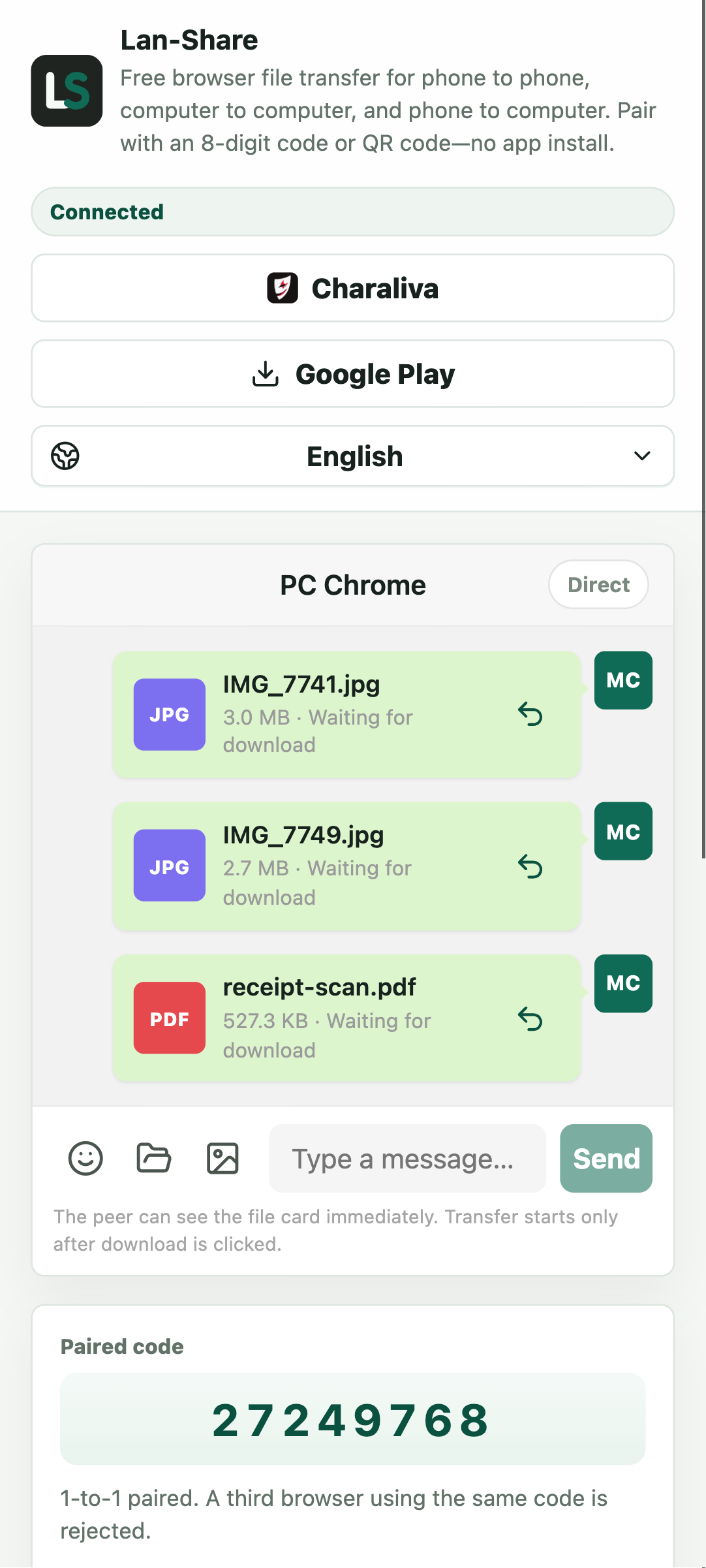
Choose photos, videos, or documents with the phone's own picker; the paperclip also takes a whole folder. Every item becomes a card in the conversation marked Waiting for download.
Download on the laptop
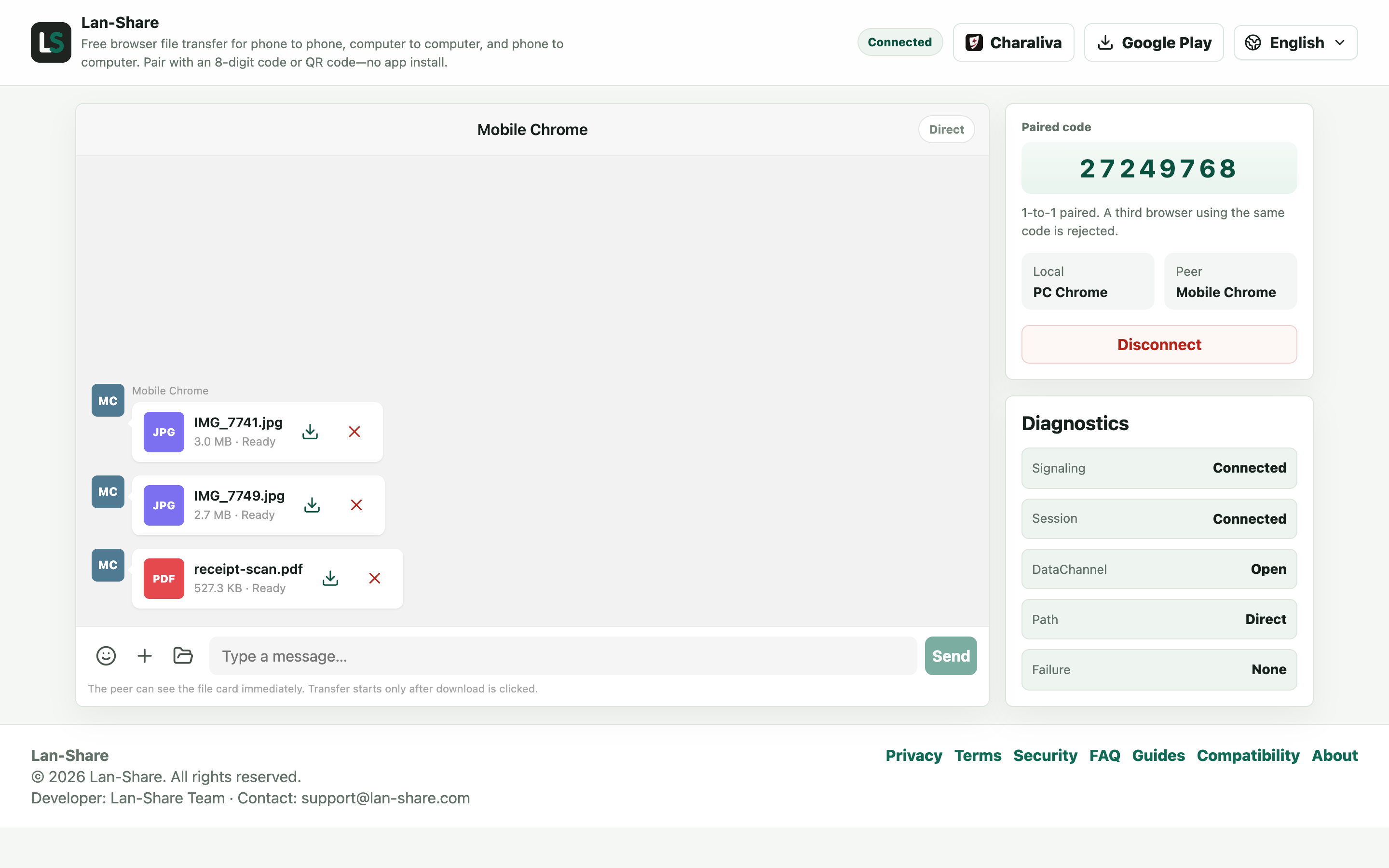
The laptop's conversation shows the same cards marked Ready. Click the download icon; files arrive byte for byte, so HEIC stays HEIC and videos are never re-encoded.
Any phone, any laptop, one page
iPhone or Android, Windows laptop or MacBook: the only requirements are a current browser and the same network. Nothing is installed, nothing is tied to an account, and the transfer works in both directions. If typing an 8-digit code feels slow, the QR code on screen pairs the two devices in one scan.
Details that keep the transfer clean
The receiver sees file names and sizes first and confirms before any bytes move. Keep both pages in the foreground while a large transfer runs — iOS Safari can pause a backgrounded tab. Each session has a per-file limit, shown on the page (about 200 MB by default). If the network isolates its devices, the phone's personal hotspot avoids the problem.
Troubleshooting
- The laptop cannot open the page
Why it happens The two devices may be on different networks — the laptop on a guest Wi-Fi while the phone is on cellular, for example.
How to fix it Put both on the same Wi-Fi, or turn on the phone's hotspot and join it from the laptop.
- The transfer stops when the phone screen locks
Why it happens Both iOS and Android suspend a backgrounded browser tab.
How to fix it Keep the phone's page in the foreground and raise Auto-Lock until the last file reads Downloaded.
- The download button does nothing on the laptop
Why it happens The browser may be blocking automatic downloads after the first file, or the card is still Waiting rather than Ready.
How to fix it Allow downloads for the site when prompted, and wait for the card to say Ready before clicking.
- A file larger than the limit is refused
Why it happens The per-file limit is shown on the page, about 200 MB by default.
How to fix it Send that file on its own in a fresh pairing, after checking the limit shown.
FAQ
How do I transfer files from my phone to my laptop without a cable?
Open lan-share.com on both devices, pair with the 8-digit code or QR code, pick files on the phone, and download them on the laptop.
Does it work on a MacBook or a Chromebook?
Yes — any laptop with a current browser, paired with any phone. No drivers, no special apps.
Will my photos and videos keep their original quality?
Yes. Files move byte for byte, so HEIC photos stay HEIC and videos keep their original encoding.
Does it work on public Wi-Fi?
Only if the network lets devices talk to each other. Hotels and cafés often enable client isolation; the phone's personal hotspot is the reliable fallback.
Is there a file size limit?
Each session has a per-file limit, shown on the page (about 200 MB by default).